How to Create MetaMask
MetaMask is a cryptocurrency wallet compatible with the Ethereum blockchain.
It can not only send, receive, and manage cryptocurrencies, but is also used for storing NFTs.
It can be created from both PC and smartphone.
How to Install MetaMask (PC Version)
How to Install MetaMask (Mobile Version)
【 (PC Version) How to Create MetaMask】
Step1 Install MetaMask (PC Version)
MetaMask can be used on various PC browsers.
(MetaMask currently supports Chrome, Firefox, Brave, Edge, and Opera. In this guide, we will use Chrome as an example.)
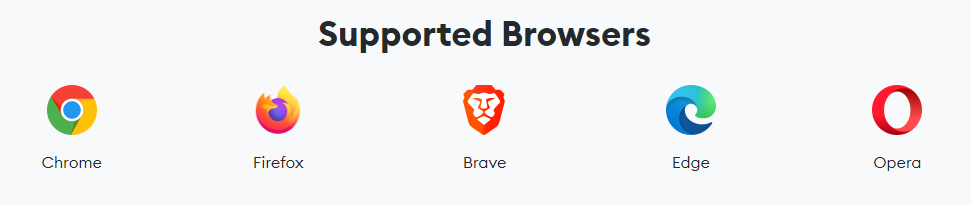
Download MetaMask
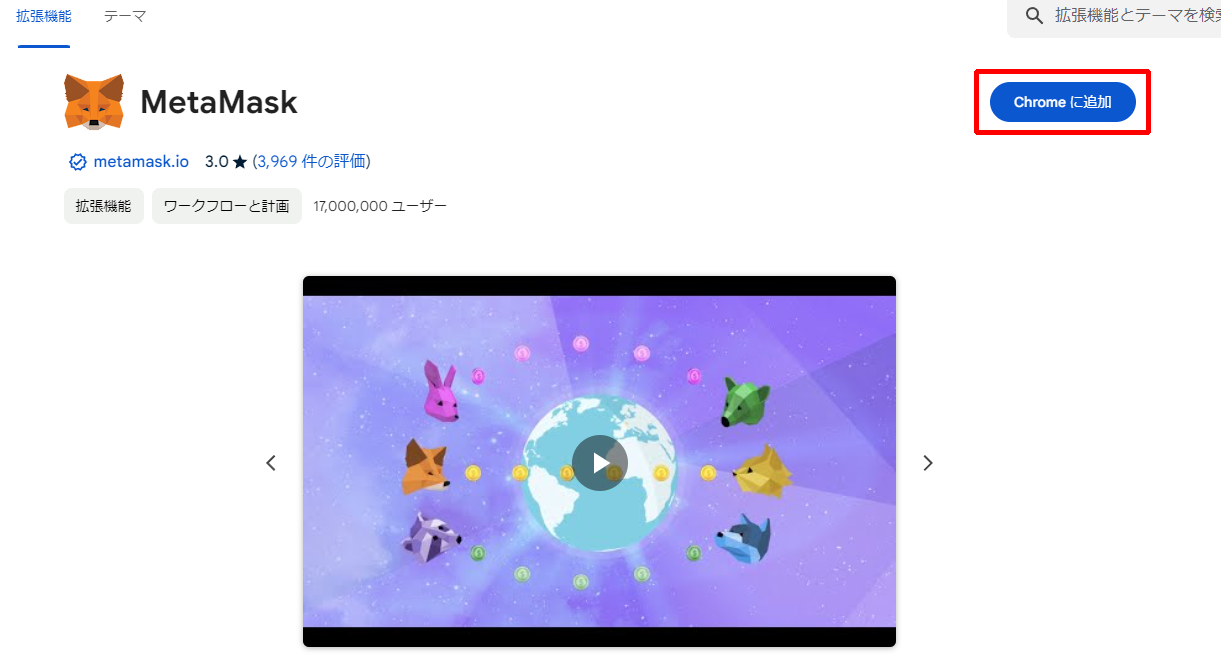
Click "Add to Chrome".
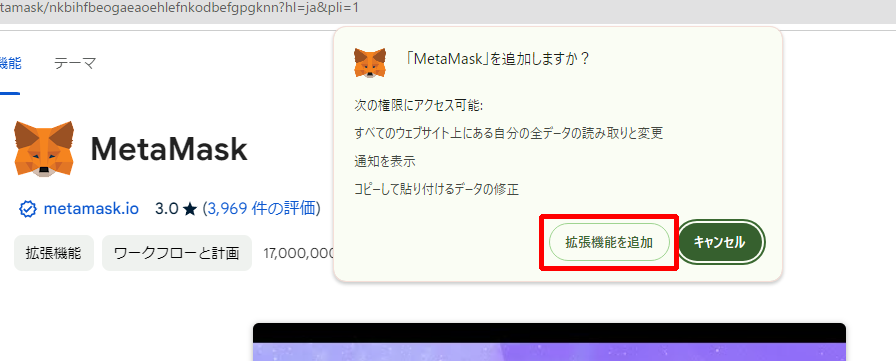
Click "Add Extension".
Step2 Create a New Wallet
Once the installation is complete, a new tab will open automatically.
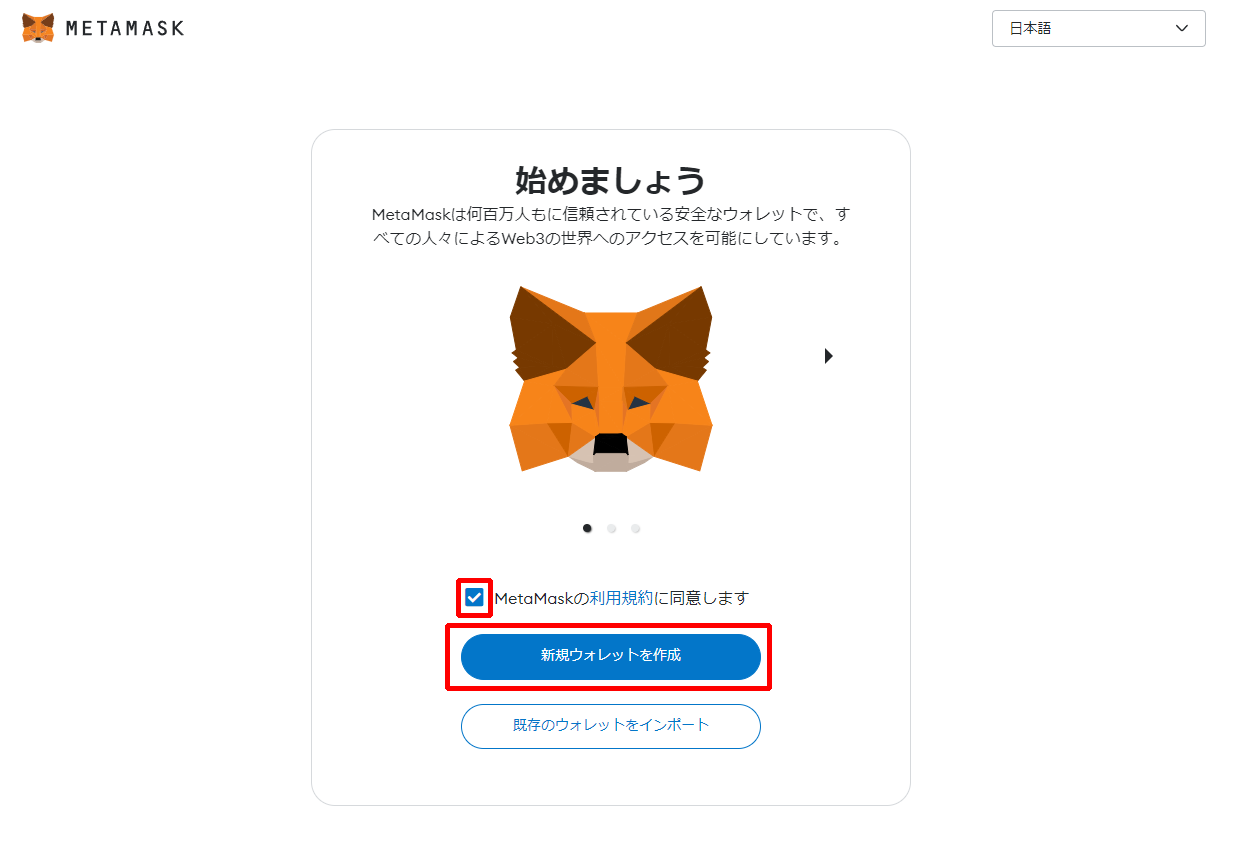
Agree to the MetaMask Terms of Use, then click "Create a New Wallet".
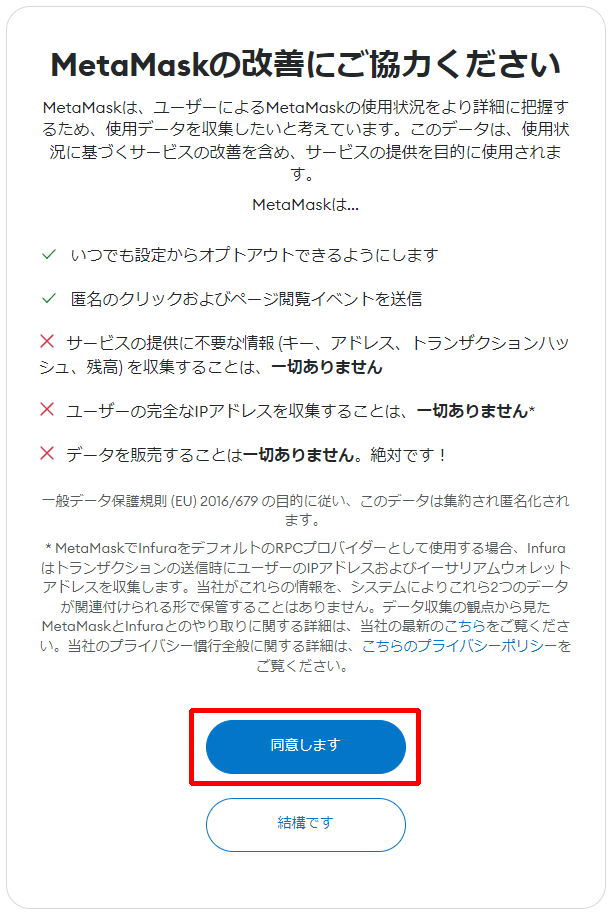
A message saying "Help improve MetaMask" will appear. Please read the content,
then click either "I Agree" or "No Thanks".
You can create a wallet regardless of your choice, so select whichever you prefer.
In this guide, we will proceed by selecting "I Agree".
Step3 Create a Password
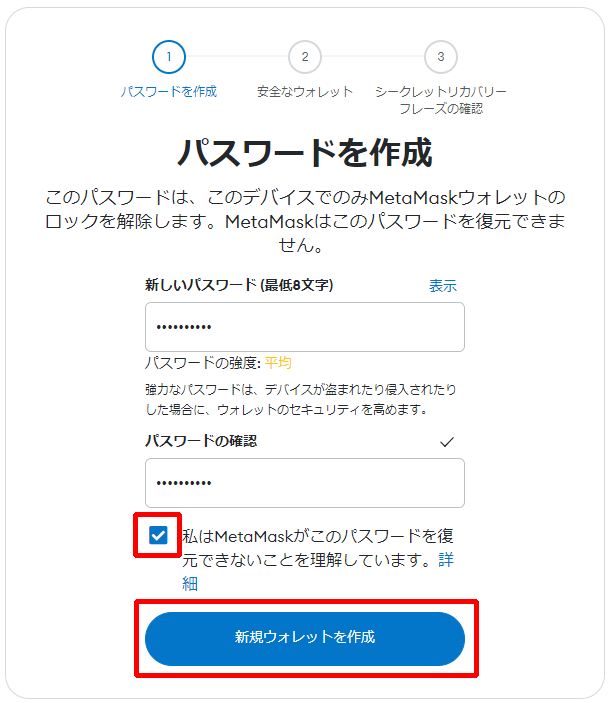
Set your password.
The password should be at least 8 characters including letters and numbers.
After setting it, read the notes, check the box, and click "Create a New Wallet".
Step4 Save the Secret Recovery Phrase
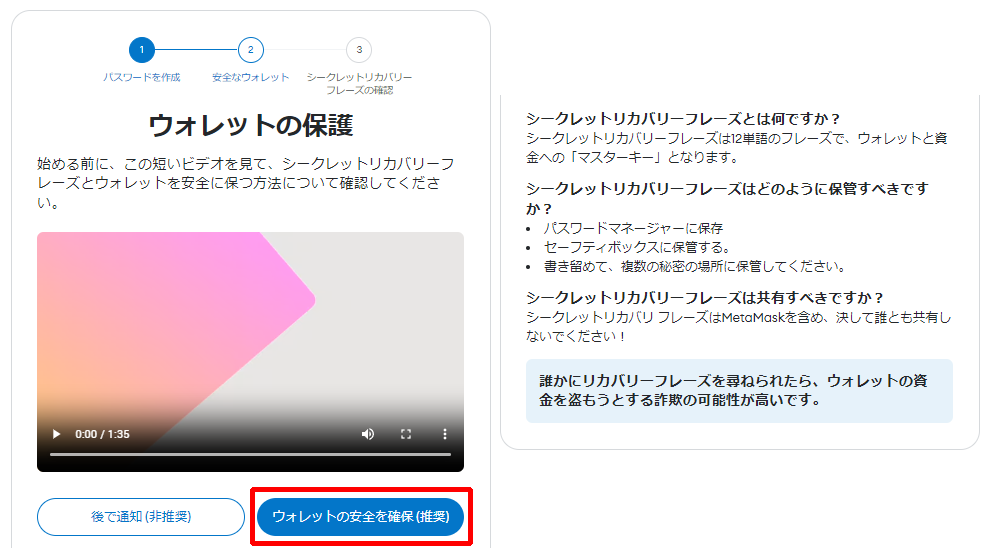
An explanation about the Secret Recovery Phrase will be displayed.
Carefully read the video and description, then click "Secure Your Wallet (Recommended)".
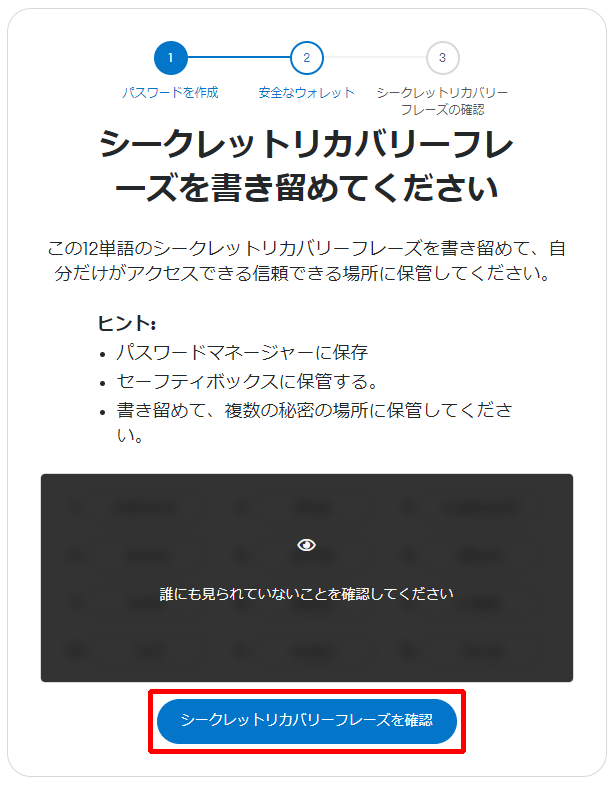
Click "Reveal Secret Recovery Phrase",
and write down the displayed words in a secure place where no one else can access them.
※If someone else learns this, they can access your wallet, so never share it.
※Storing it on your PC carries a risk of leakage if hacked, so writing it down is safer.
※If you forget the Secret Recovery Phrase, you will not be able to log in to your account,
and you will lose access to the important assets in your wallet. To manage this risk, we recommend storing it in multiple locations.
Step5 Confirm the Secret Recovery Phrase

Enter the Secret Recovery Phrase into the blank fields,
then click "Confirm".
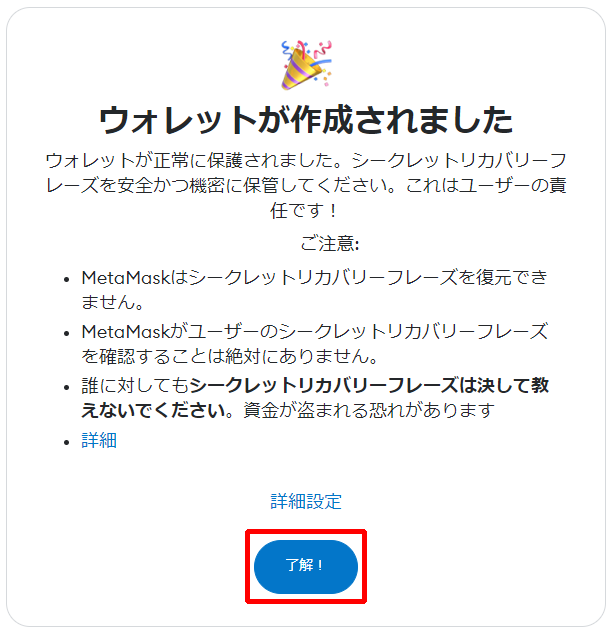
Click "Got It".
This completes the MetaMask setup.
Step6 Complete PC Version MetaMask Setup

When you reach this screen, the setup is complete.
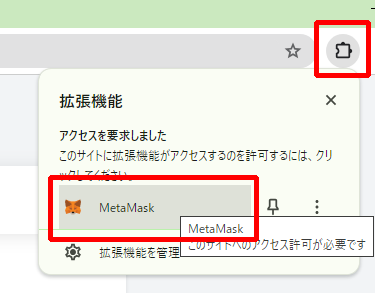
You can open MetaMask anytime from Extensions at the top right of the Chrome window.
【 (Mobile Version) How to Create MetaMask】
The mobile version of MetaMask can be used as a smartphone app.
Install it from the links below.
For iOS devices (iPhone)
For Android devices
Here, we will explain how to create MetaMask using an iPhone.
Step1 Install the MetaMask Mobile App
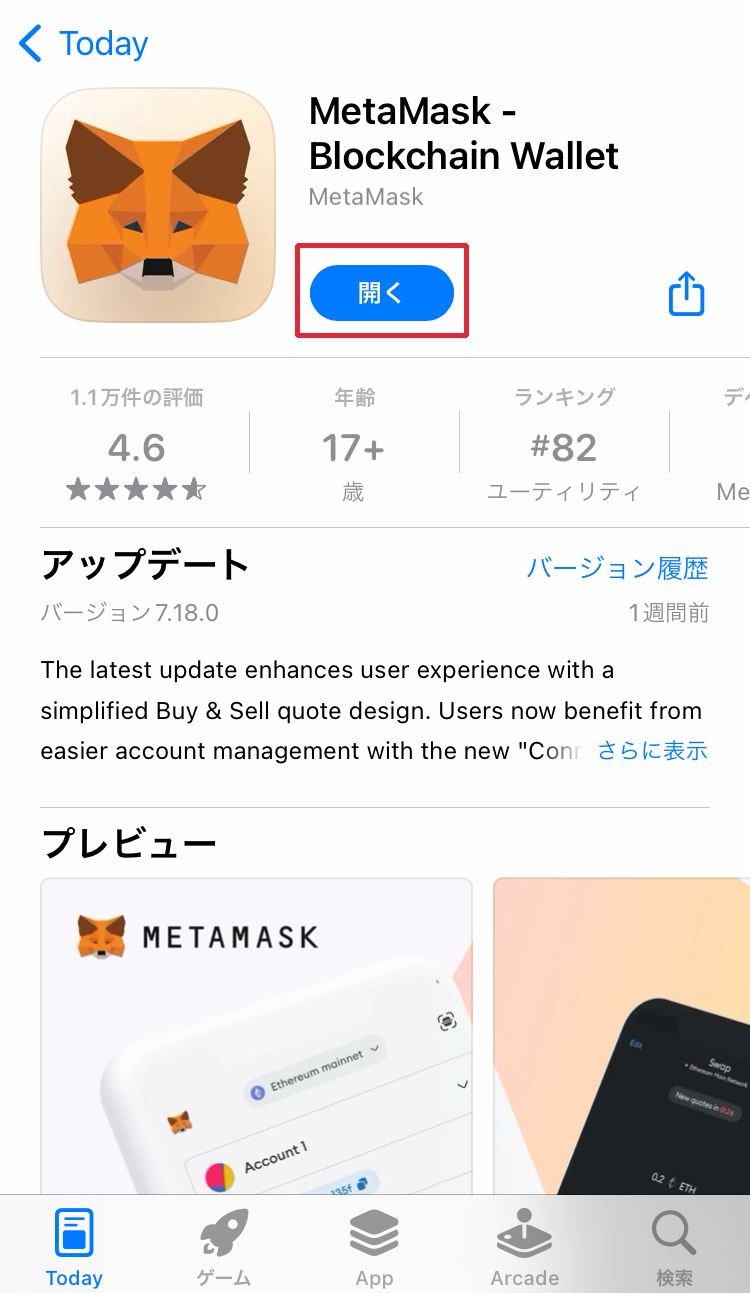
Tap "Get",
and once installation is complete, tap "Open".
Step2 Create a New Wallet
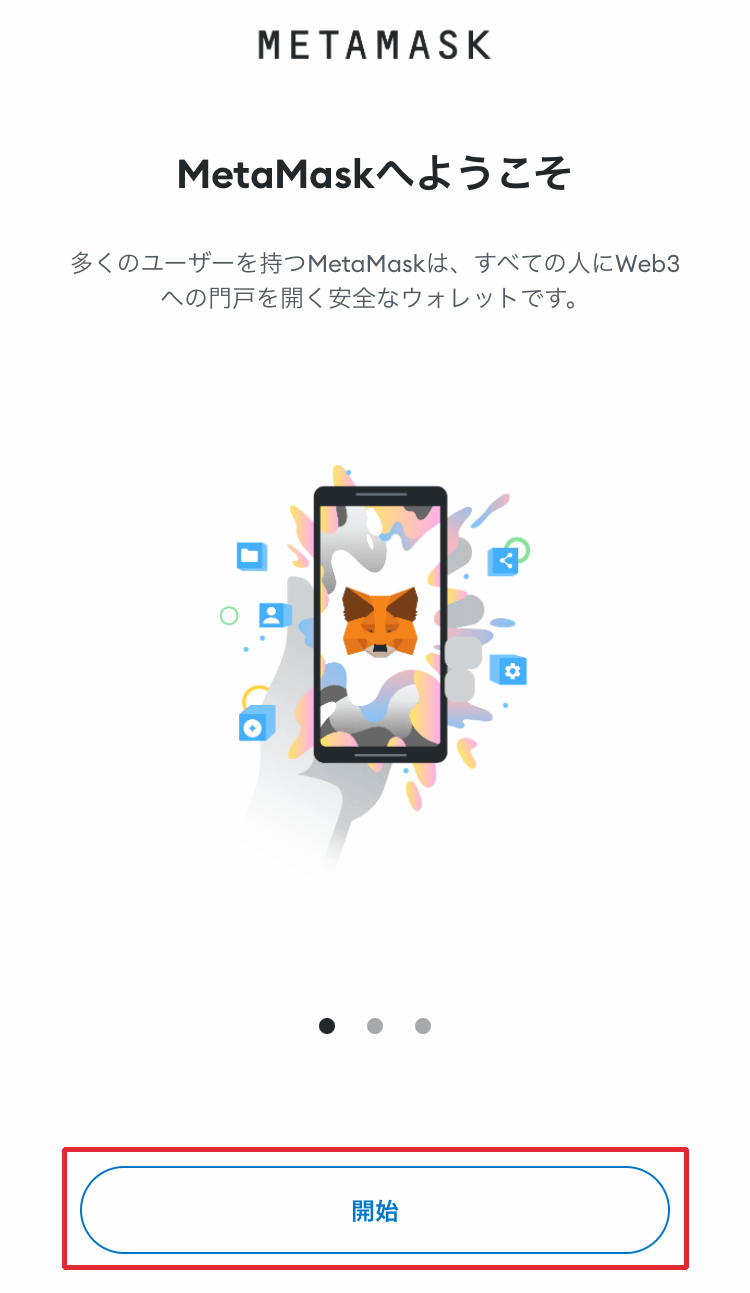
Once the app opens, tap "Get Started".
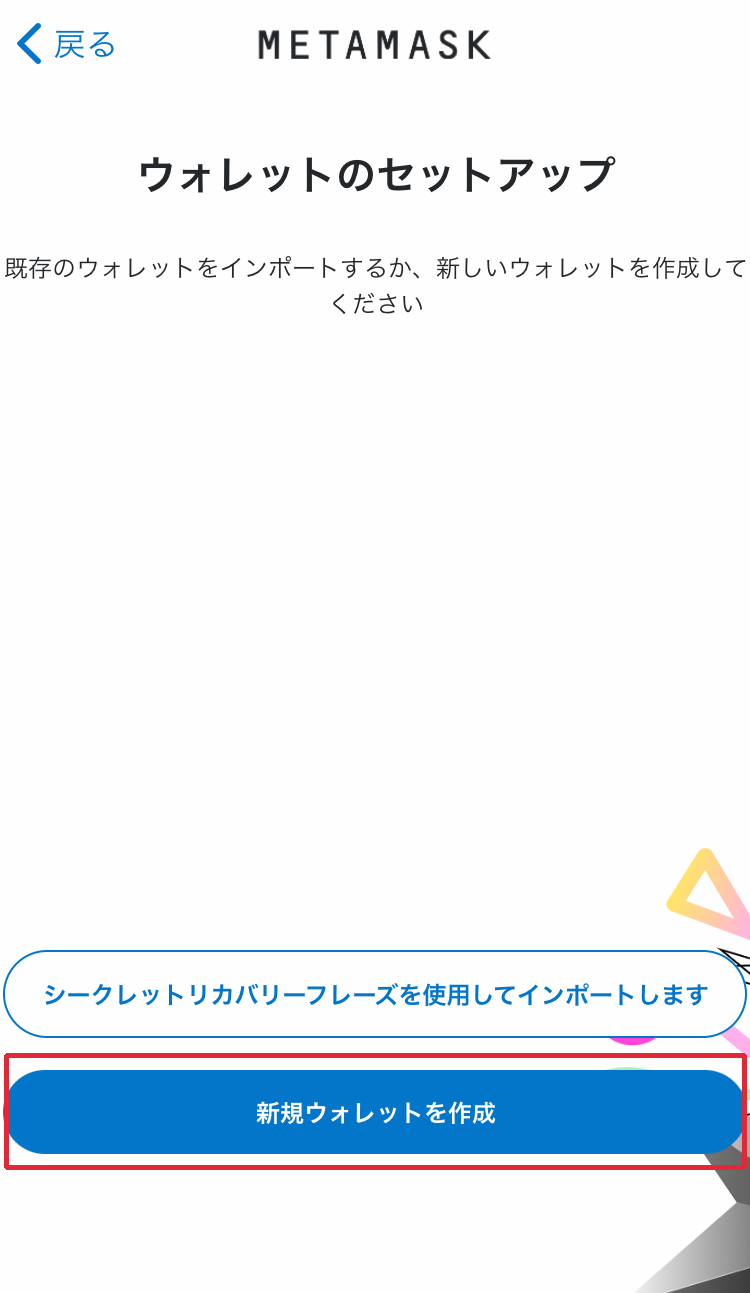
Tap "Create a New Wallet".
This section explains how to create MetaMask for the first time on a smartphone.
If you already created it on a PC and want to use it on your smartphone, tap "Import using Secret Recovery Phrase" and follow the on-screen instructions.
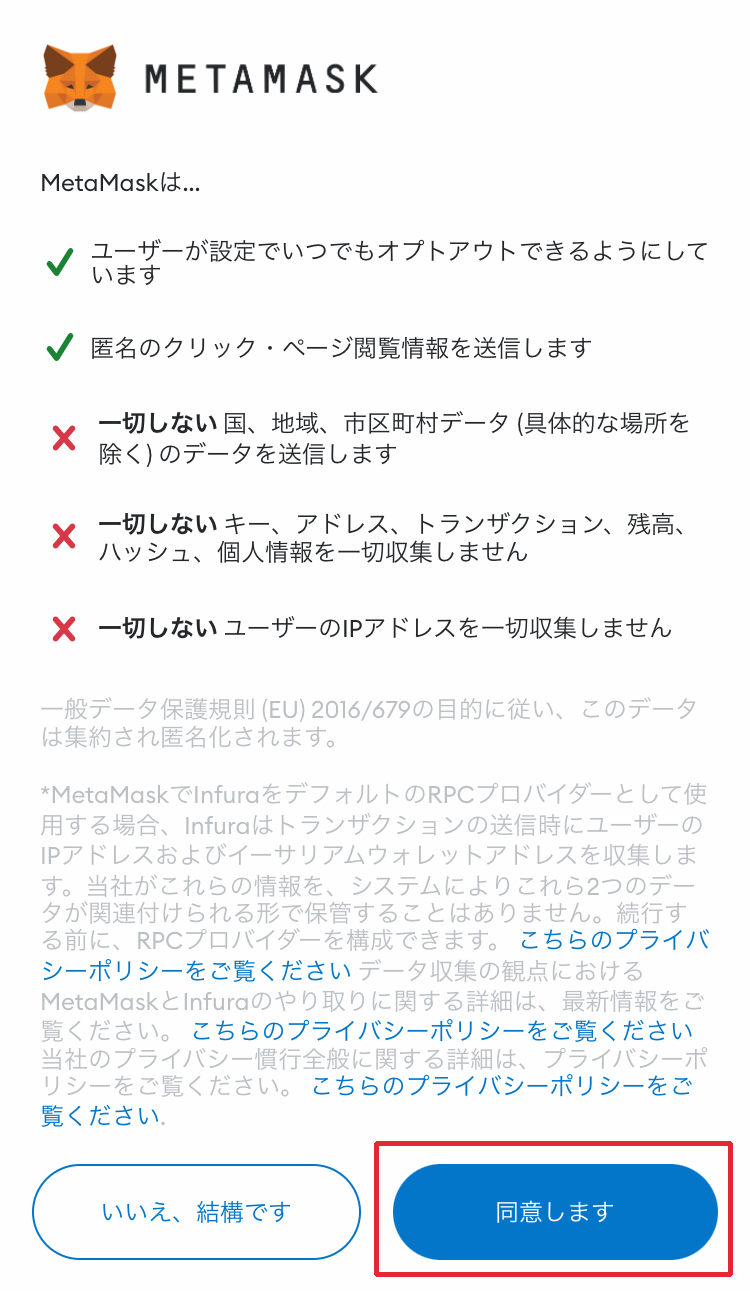
A message starting with "MetaMask ..." will appear. Scroll down and review the content.
After reviewing, the button will become clickable, so tap "I Agree".
You can also tap "No Thanks", and either option will work.
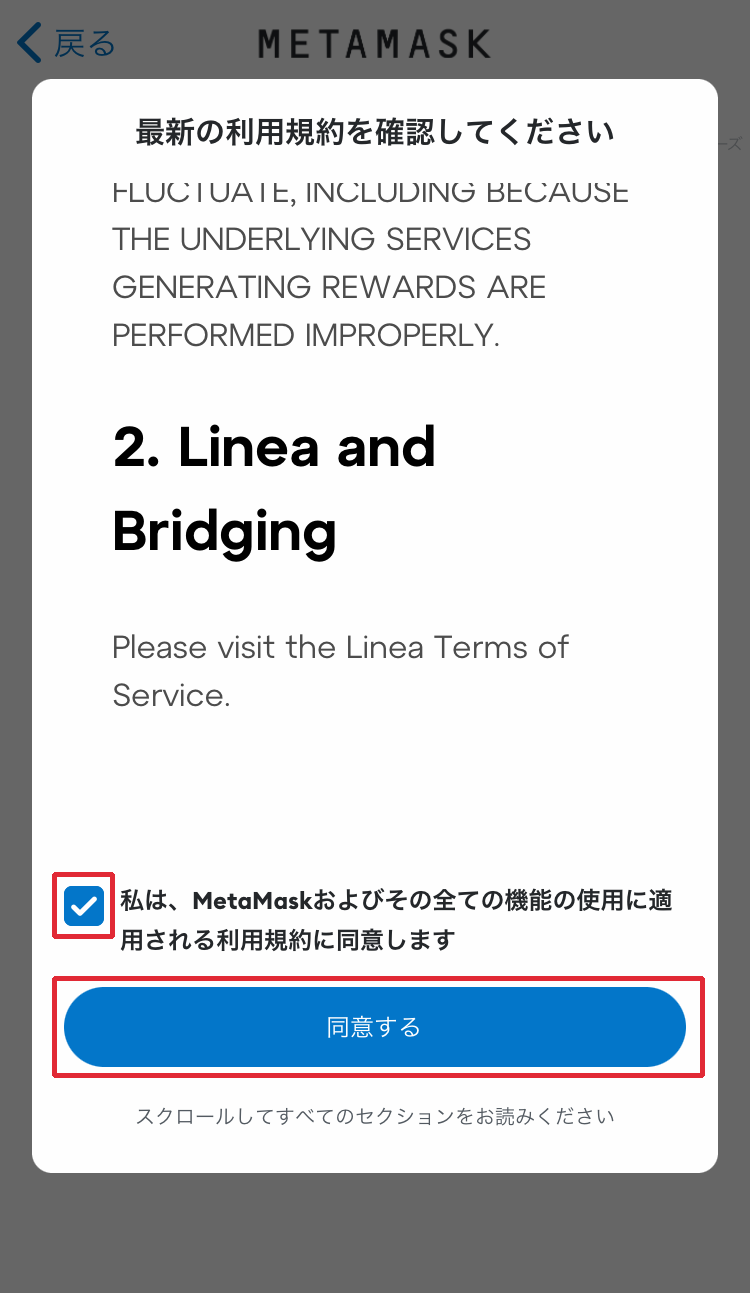
Scroll through and review the Terms of Use.
After reviewing, check "I agree to the Terms of Use" and tap "Agree".
Step3 Create a Password
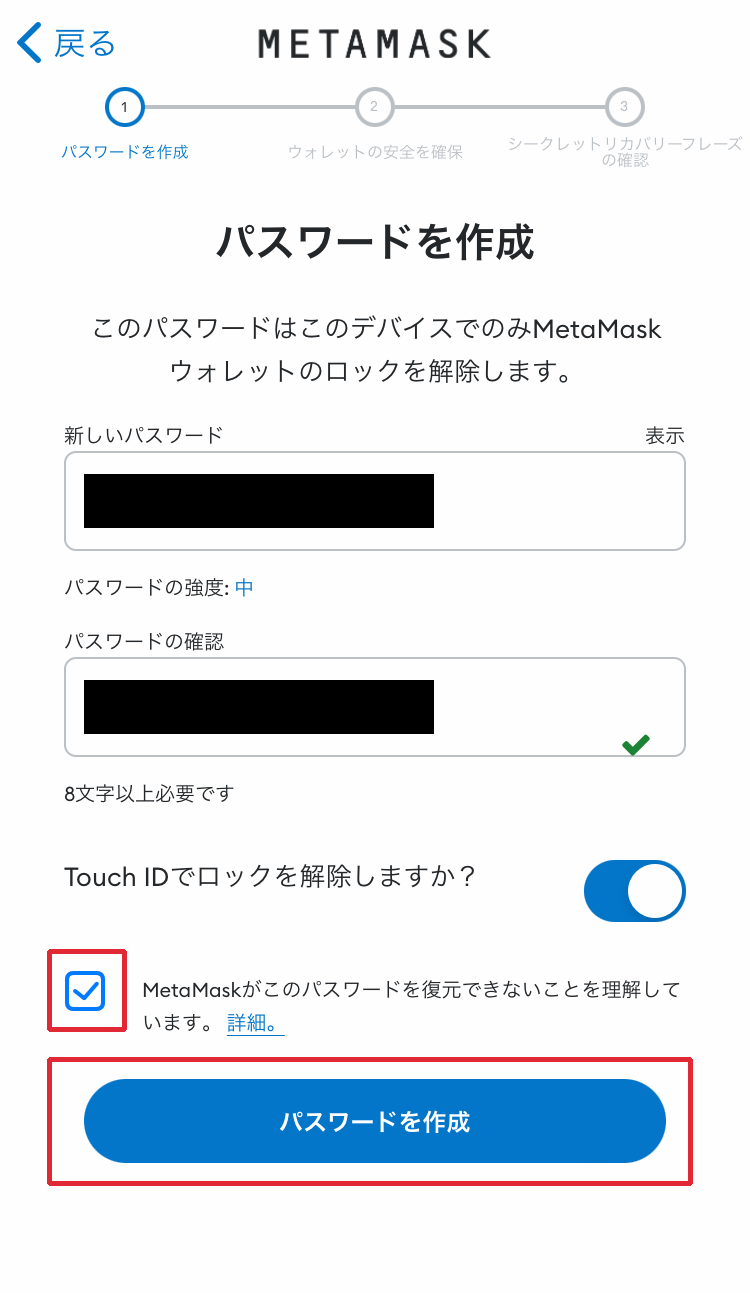
Set your password.
The password should be at least 8 characters including letters and numbers.
Check the box and tap "Create Password".
Step4 Save the Secret Recovery Phrase
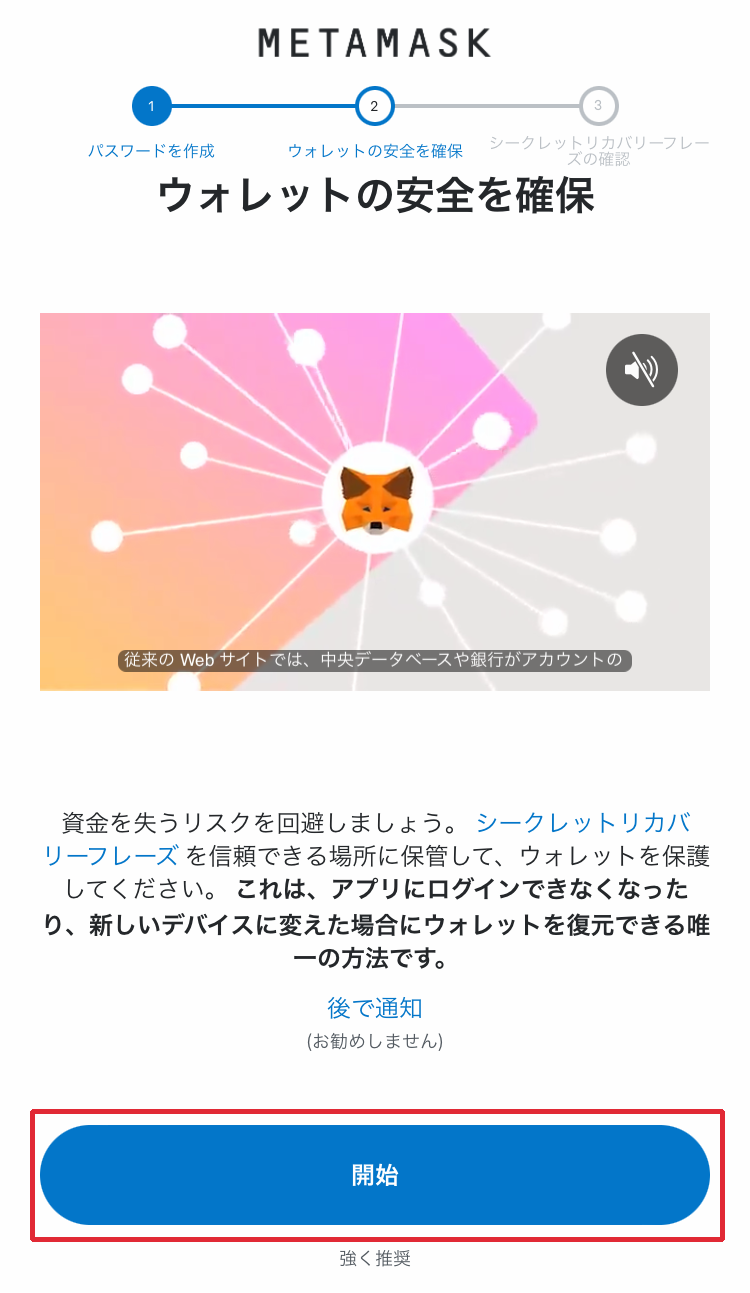
After creating the password, a video explaining the Secret Recovery Phrase will play.
After reviewing, tap "Start".
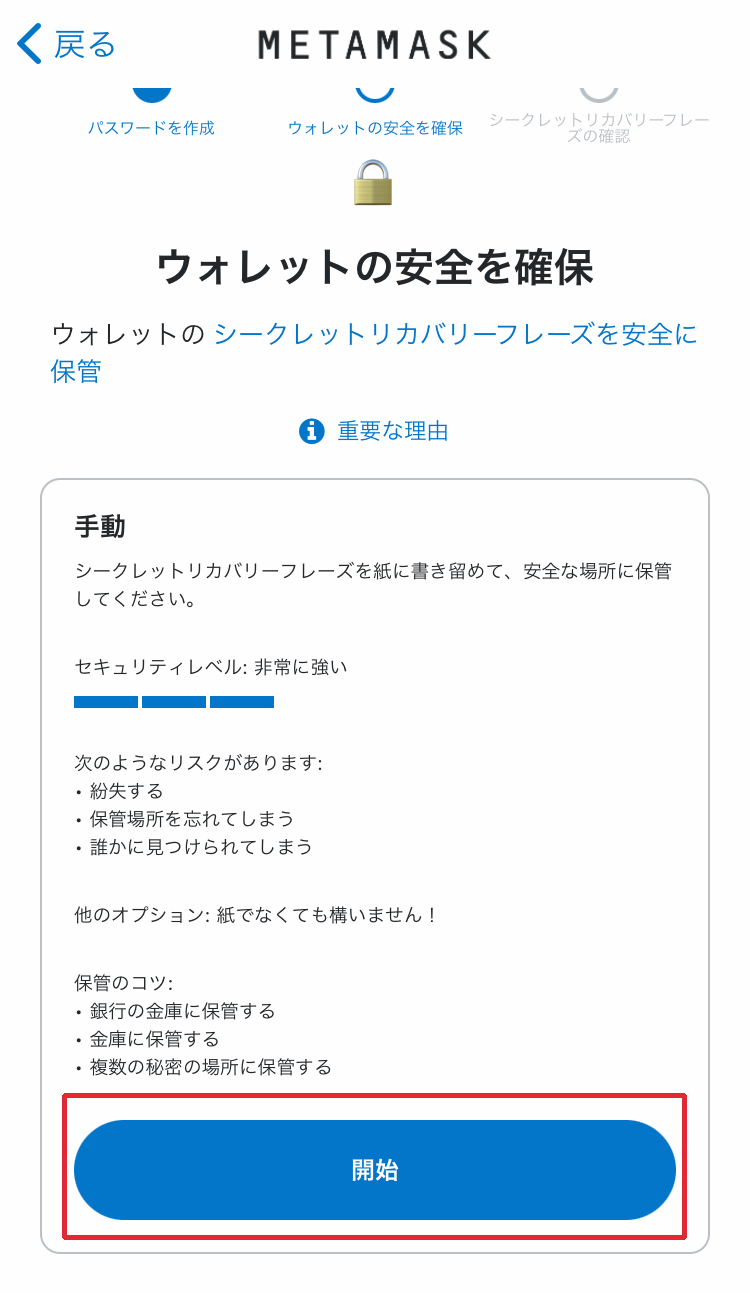
An explanation of the Secret Recovery Phrase will be displayed in text.
Review the content and tap "Start".
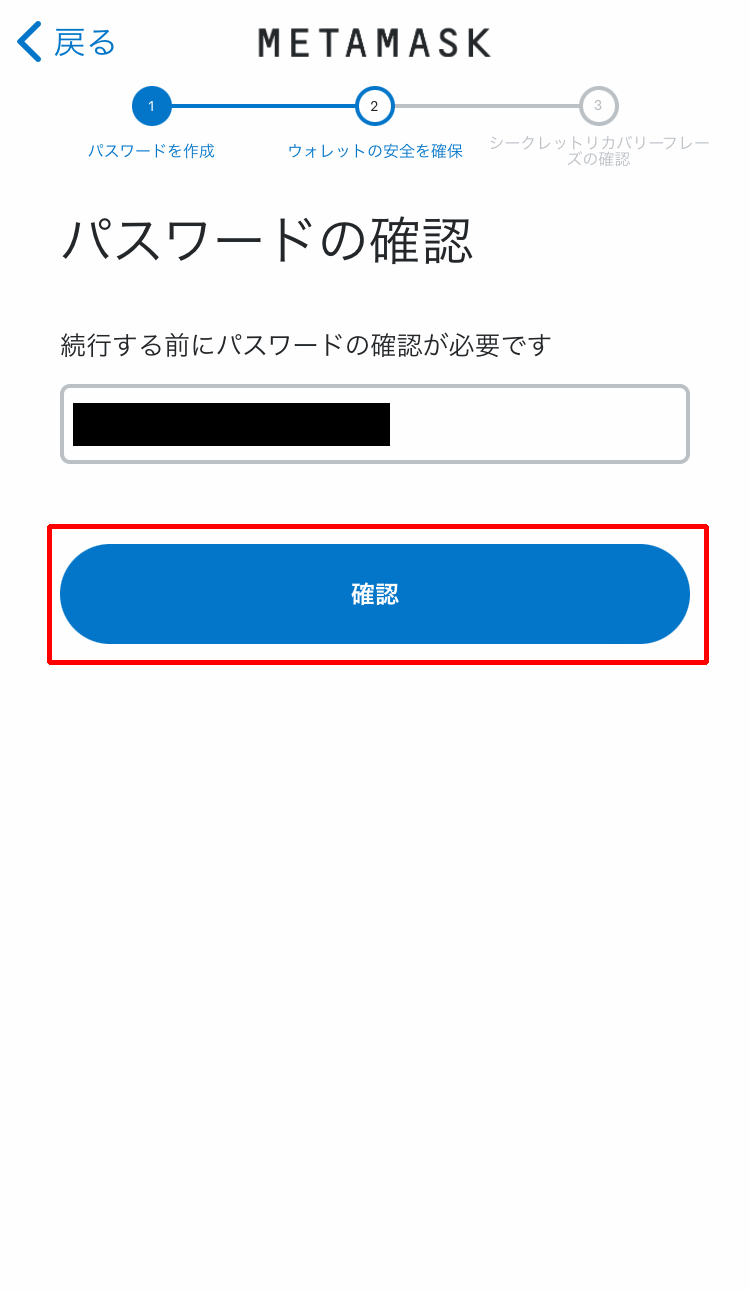
Confirm your password.
Enter the password you created (8 or more characters) and tap "Confirm".
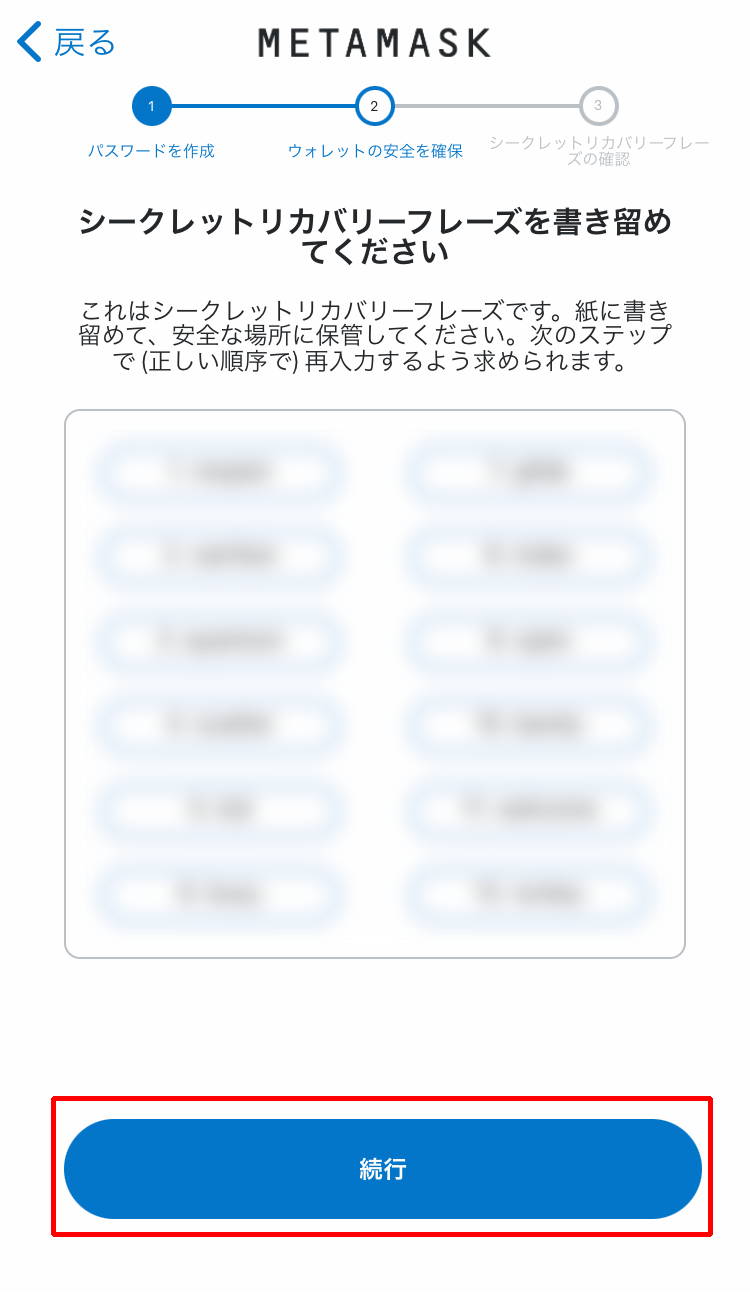
Check your Secret Recovery Phrase,
and write down the displayed words in a secure place where no one else can access them.
※If someone else learns this, they can access your wallet, so never share it.
※Storing it on your smartphone carries a risk of leakage if hacked, so writing it down is safer.
※If you forget the Secret Recovery Phrase, you will not be able to log in to your account,
and to prevent losing access to the important assets in your wallet, we recommend storing it in multiple locations.
Step5 Confirm the Secret Recovery Phrase
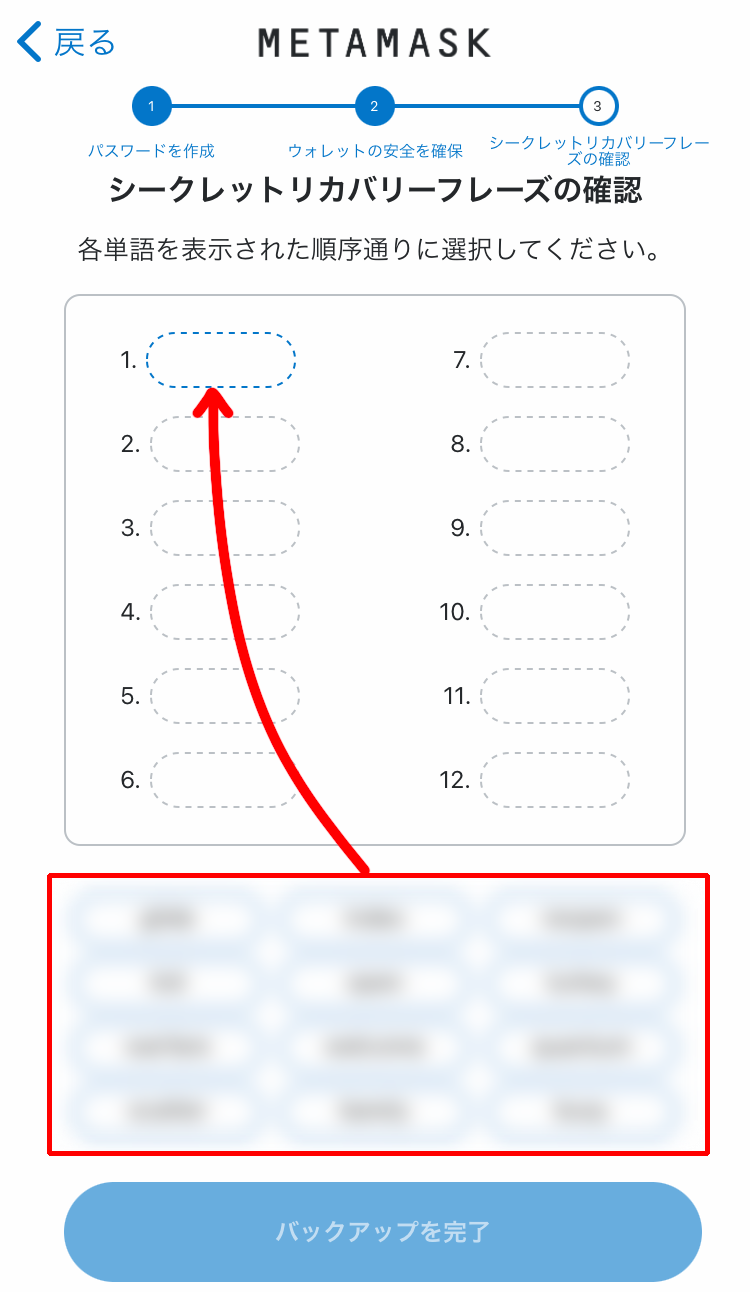
Select and enter the Secret Recovery Phrase you saved earlier in order from the bottom.
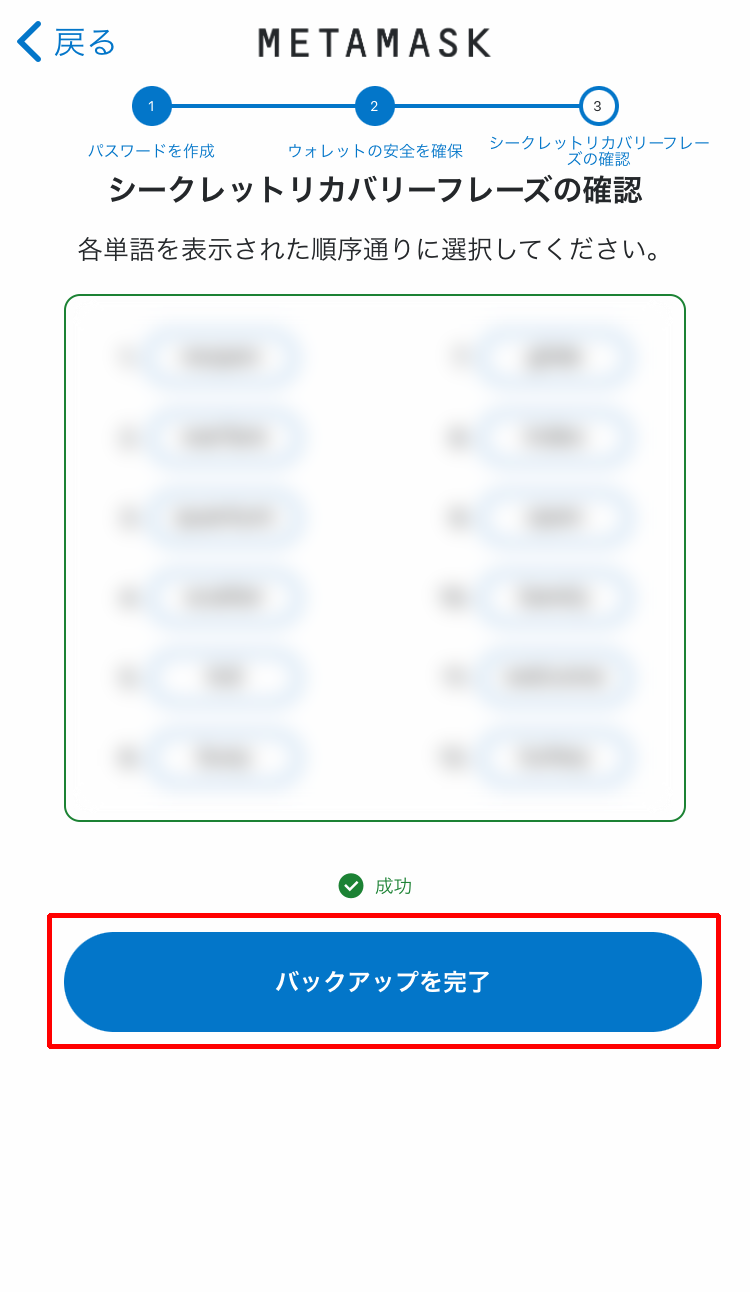
If the input is successful, tap "Complete Backup".
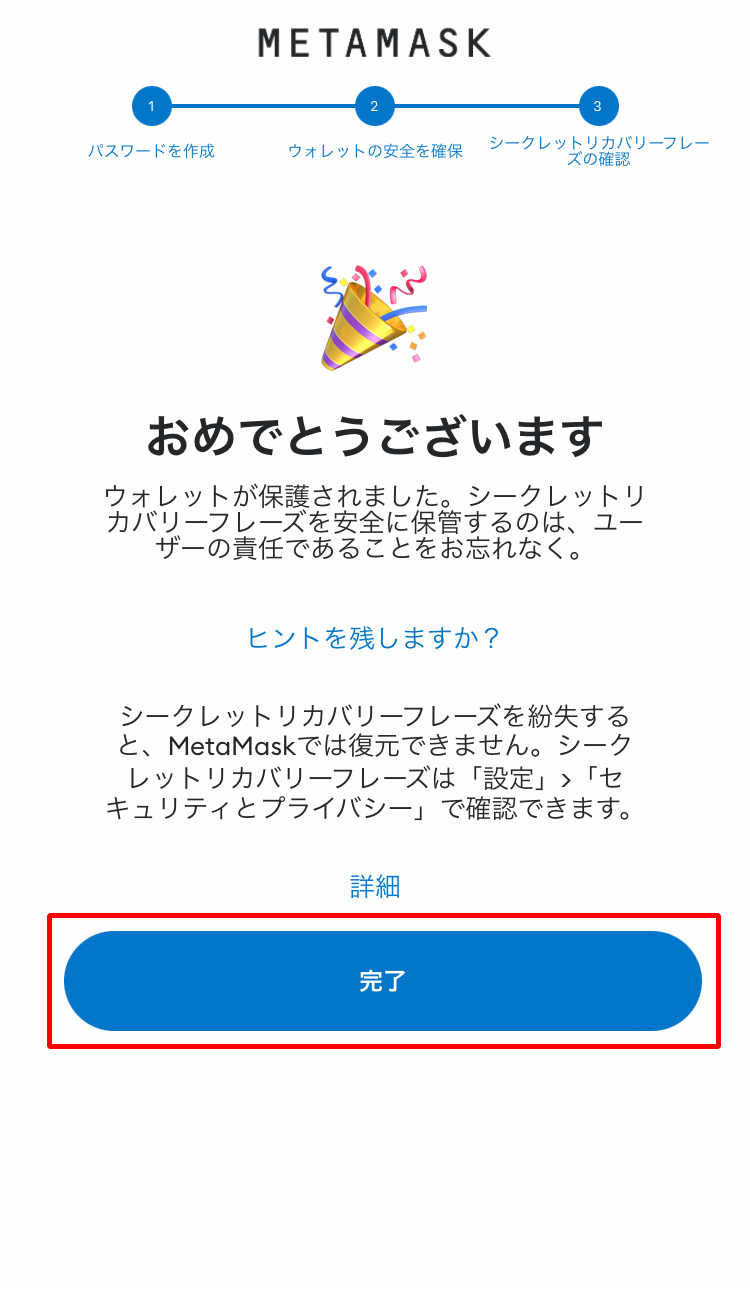
After confirming the recovery phrase, a "Congratulations" message will appear,
so tap "Done".
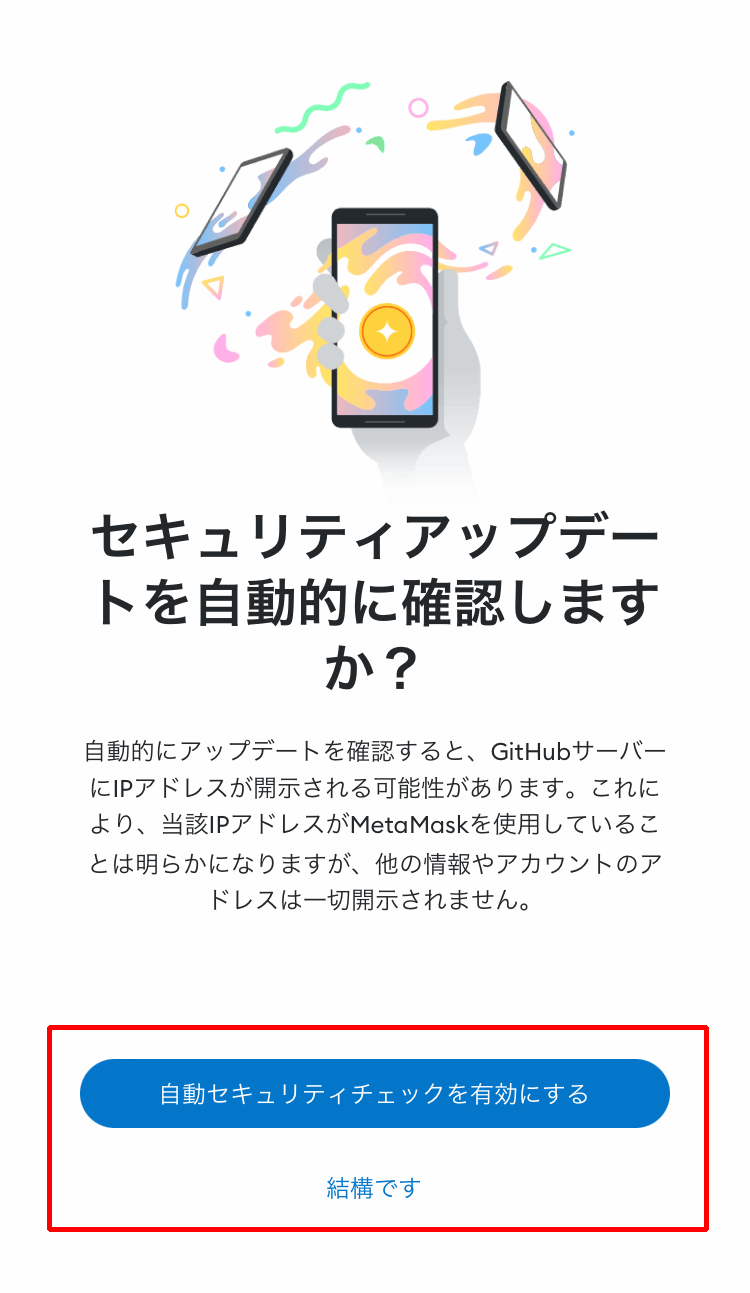
A message asking "Enable automatic security updates?" will appear. Read the content,
then tap "Enable Auto Security Check" or "No Thanks".
You can use the wallet regardless of your choice, so select whichever you prefer.
Step6 Complete Mobile Version MetaMask Setup
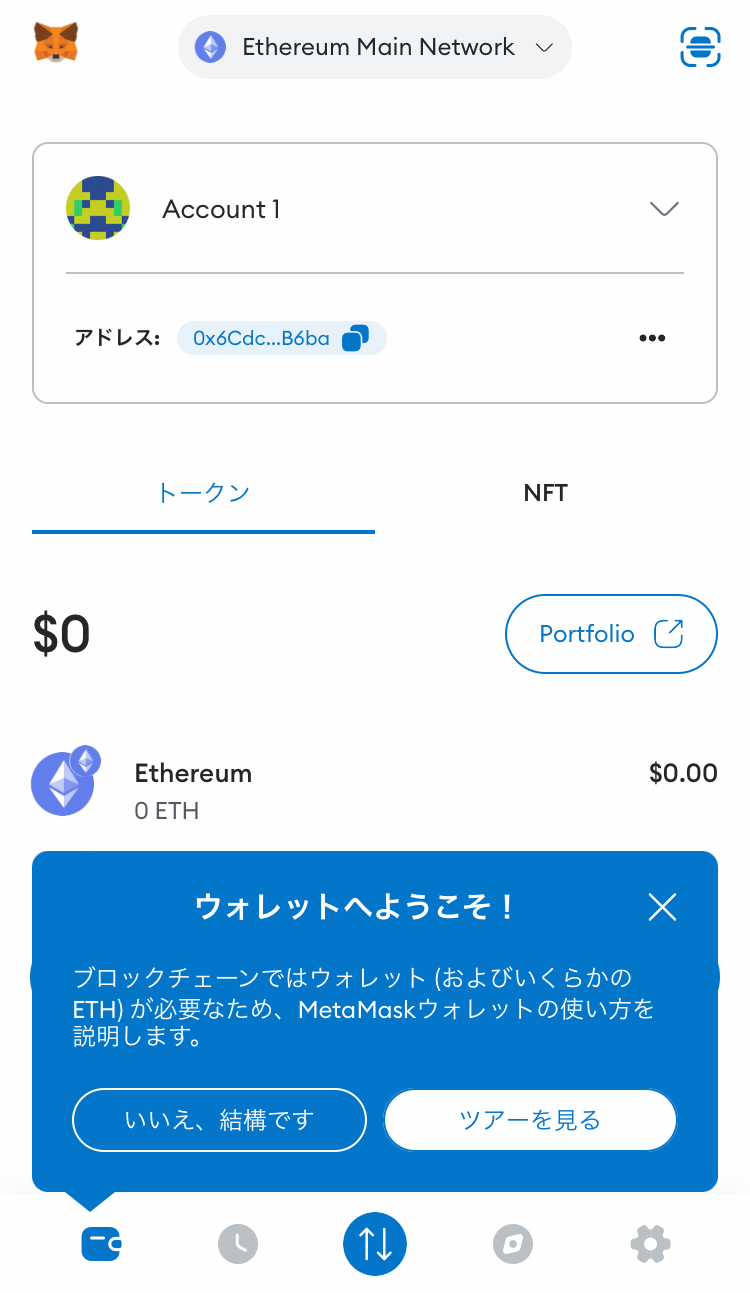
The mobile version of MetaMask setup is now complete.