How to Set Up the ADIL Network and AdilScan in MetaMask
To use ADIL in MetaMask, you need to add the ADIL network information.
By setting AdilScan as the block explorer URL, you can view wallet addresses, transaction history, and other blockchain information.
If you have not created a MetaMask wallet yet, see How to Create MetaMask first.
Button names and screen layouts may vary depending on your version of MetaMask. This page explains the PC and mobile procedures based on the interface shown in the images.
ADIL Network Information
Enter the following information.
| Field | Value |
|---|---|
| Network name | ADIL Chain V2 Mainnet |
| Network URL (RPC URL) | https://adilchain-rpc.io |
| Chain ID | 7576 |
| Currency symbol | ADIL |
| Block explorer URL | https://adilchain-scan.io |
Use the mainnet chain ID 7576, not the testnet chain ID 7575.
After you enter the URLs, MetaMask may display them without the https:// scheme on the confirmation screen.
PC: Add the ADIL Network
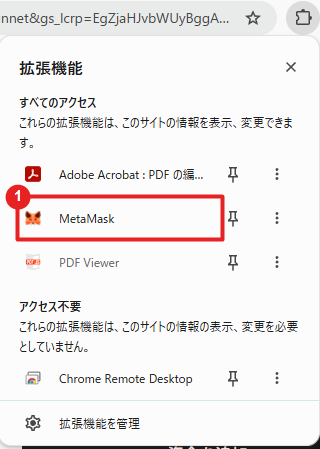
Step 1: Open MetaMask
Open 「拡張機能」 (Extensions) in the upper-right corner of Chrome, then click MetaMask.
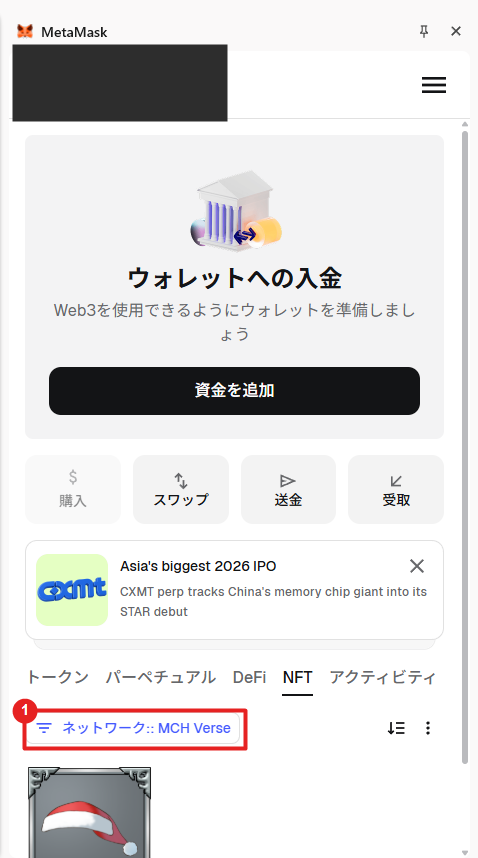
Step 2: Open the Network List
On the MetaMask 「トークン」 (Tokens) screen, click 「ネットワーク: (現在のネットワーク名)」 (Network: [current network name]).
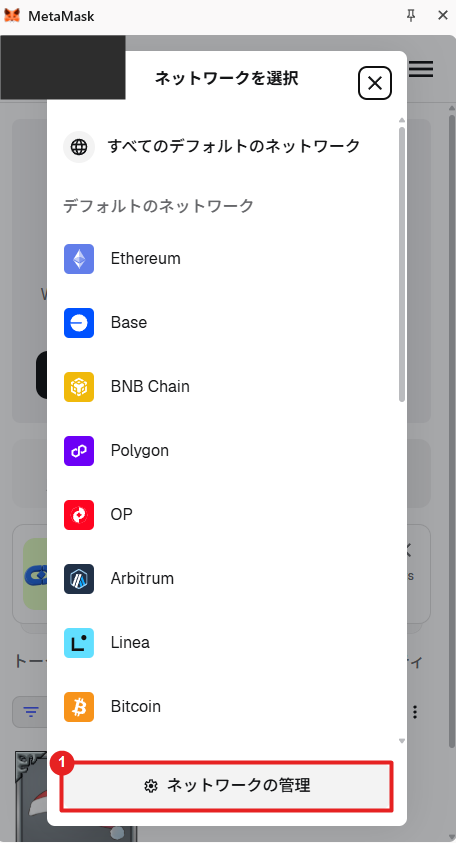
Step 3: Open the Custom Network Form
At the bottom of the network list, click 「ネットワークの管理」 (Manage networks).
Next, click 「カスタムネットワークを追加」 (Add a custom network) at the bottom of the screen.
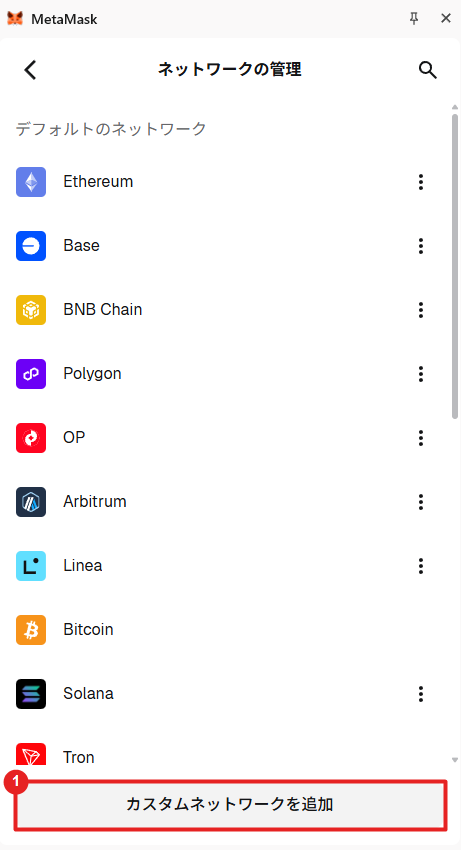
Step 4: Enter the Network Information and Save
Enter the five fields listed under “ADIL Network Information.”
Confirm that the network name, chain ID, currency symbol, and both URLs are correct, then click 「保存」 (Save).
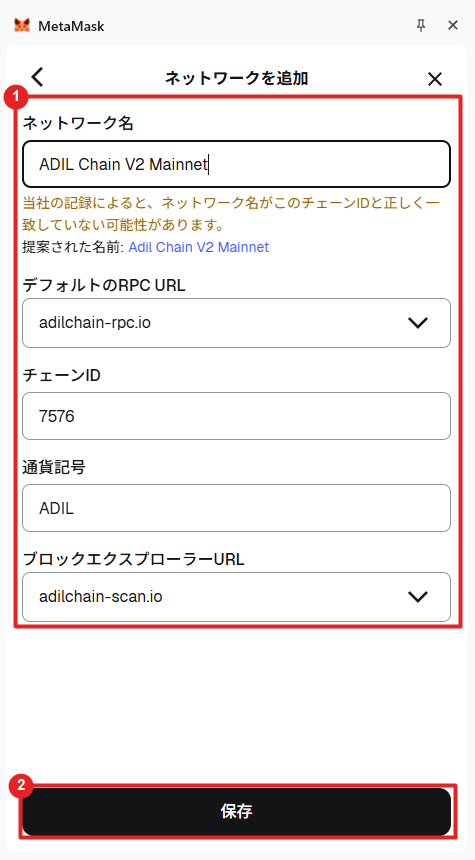
The image displays the URLs without https://, but the complete values to enter are:
- Network URL:
https://adilchain-rpc.io - Block explorer URL:
https://adilchain-scan.io
Step 5: Confirm the Switch to the ADIL Network
Return to the 「トークン」 (Tokens) screen and confirm that the selected network is “ADIL Chain V2 Mainnet.”
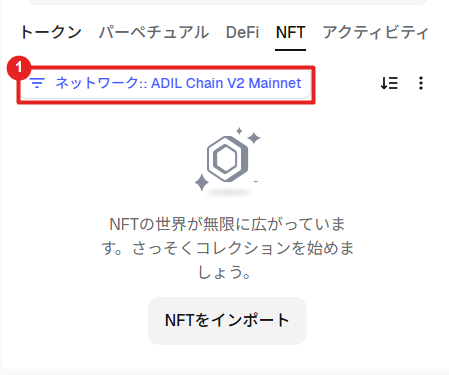
Step 6: Open AdilScan
Click “ADIL” in the token list.
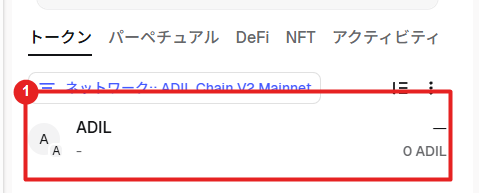
Open the menu in the upper-right corner of the ADIL screen, then click 「アセットをエクスプローラーで表示」 (View asset in explorer).
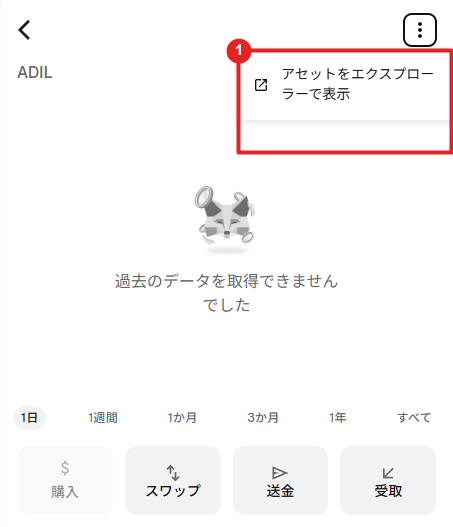
When AdilScan opens in your browser, the PC setup is complete.
Mobile: Add the ADIL Network
The following steps use the Android version of MetaMask shown in the images. Button positions and names may differ on iPhone or in other versions.
Step 1: Open the Tokens Screen in the MetaMask App
Open the MetaMask app and tap 「トークン」 (Tokens) on the home screen.
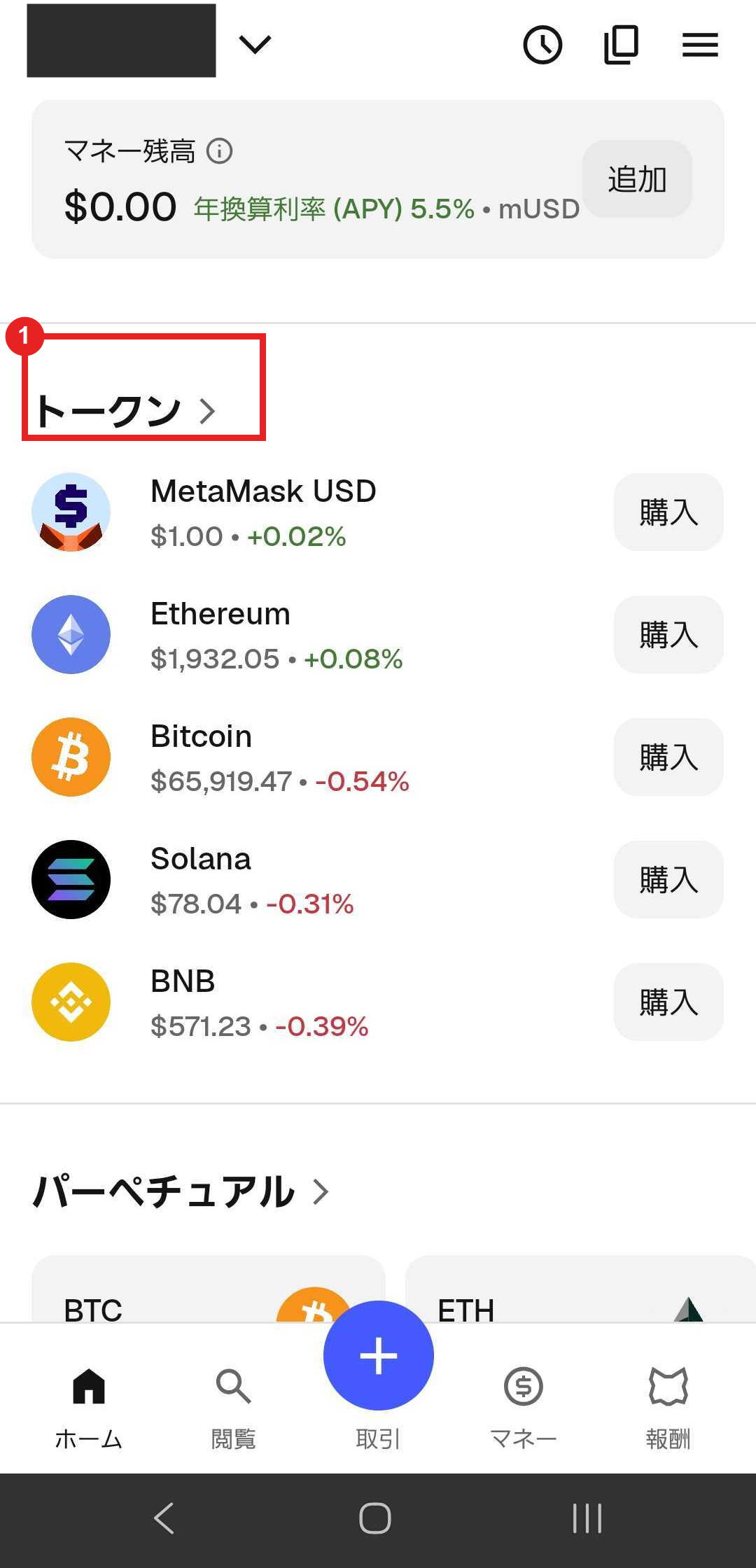
Step 2: Open the Custom Network Form
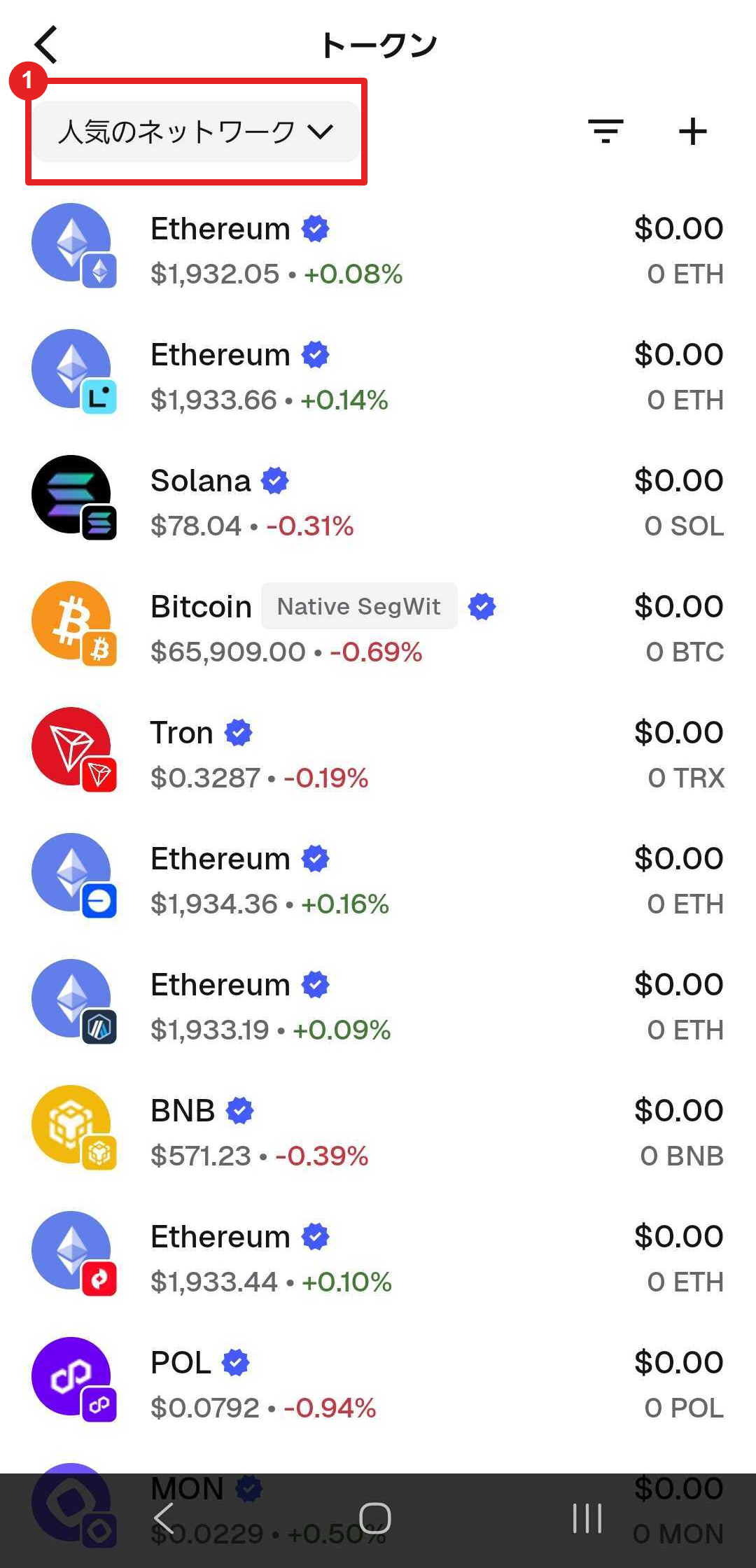
Tap the network selector at the top of the 「トークン」 (Tokens) screen. In the image, it is labeled 「人気のネットワーク」 (Popular networks).
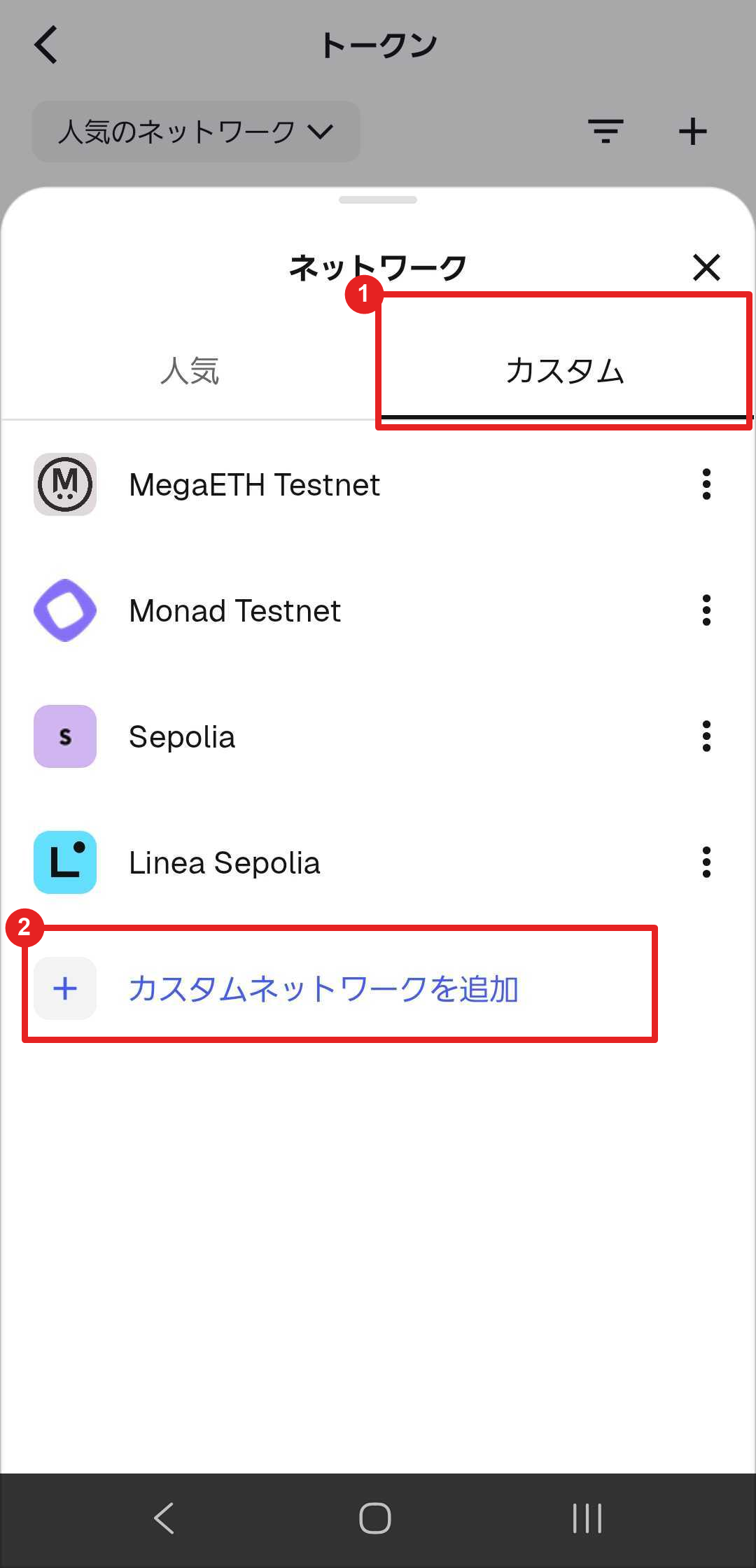
On the network screen, select the 「カスタム」 (Custom) tab, then tap 「カスタムネットワークを追加」 (Add a custom network).
Step 3: Enter the Network Information and Save
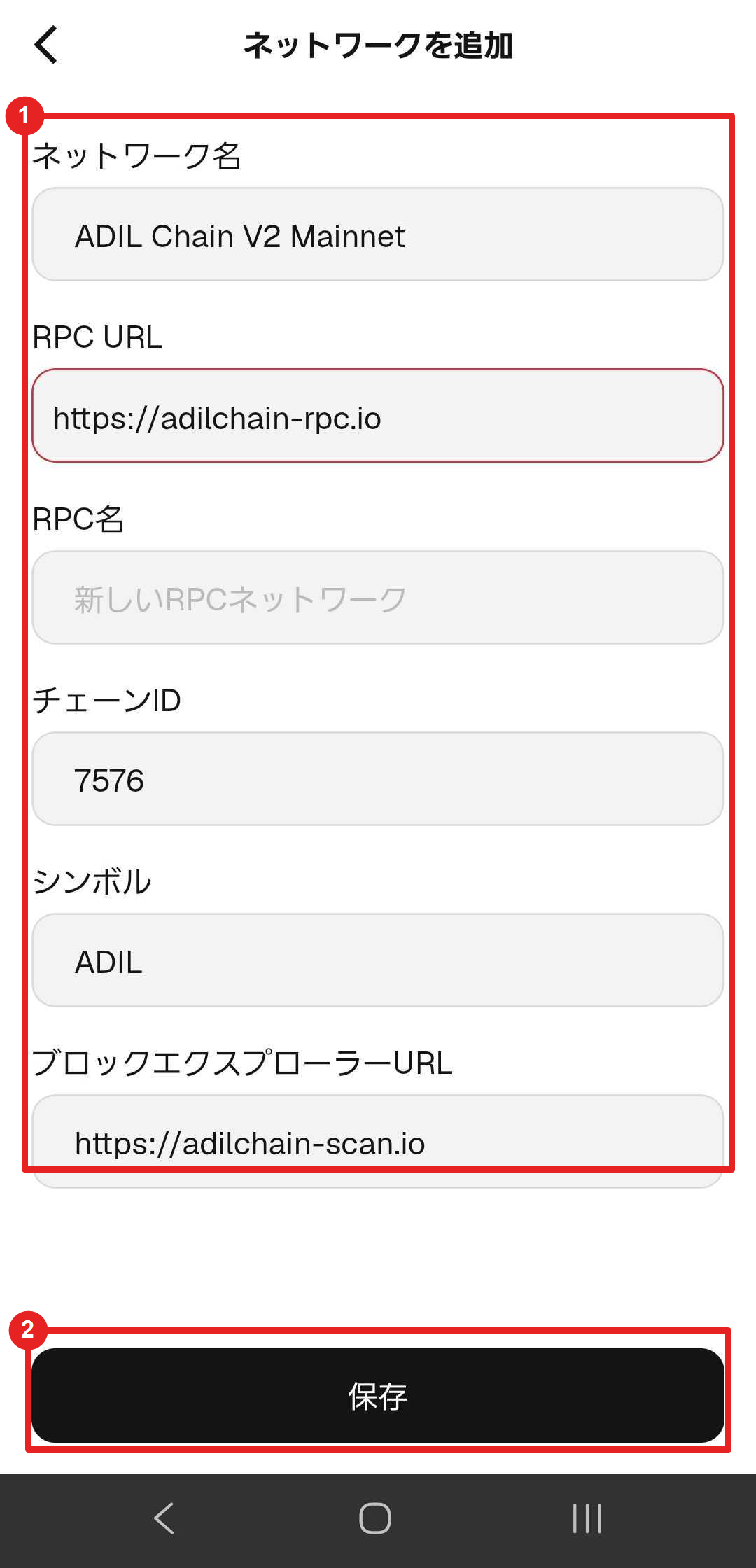
Enter the five fields listed under “ADIL Network Information.”
The 「RPC名」 (RPC name) field shown in the image is filled in automatically. Confirm the entries, then tap 「保存」 (Save).
Step 4: Confirm the Switch to the ADIL Network
Confirm that the selected network is “ADIL Chain V2 Mainnet” and that “ADIL” appears in the token list.
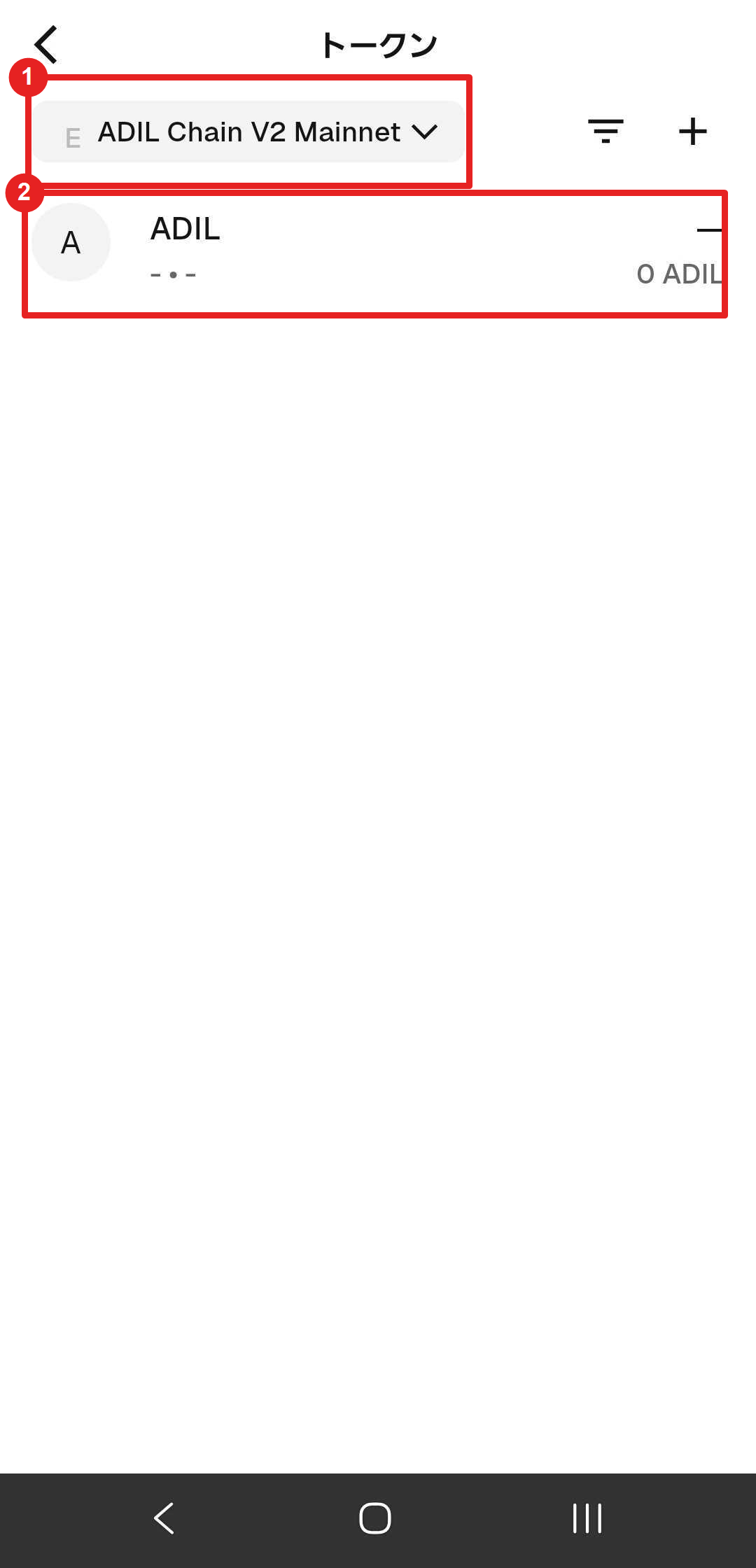
Step 5: Open AdilScan
Open “ADIL” in the token list, then tap 「さらに表示」 (Show more).
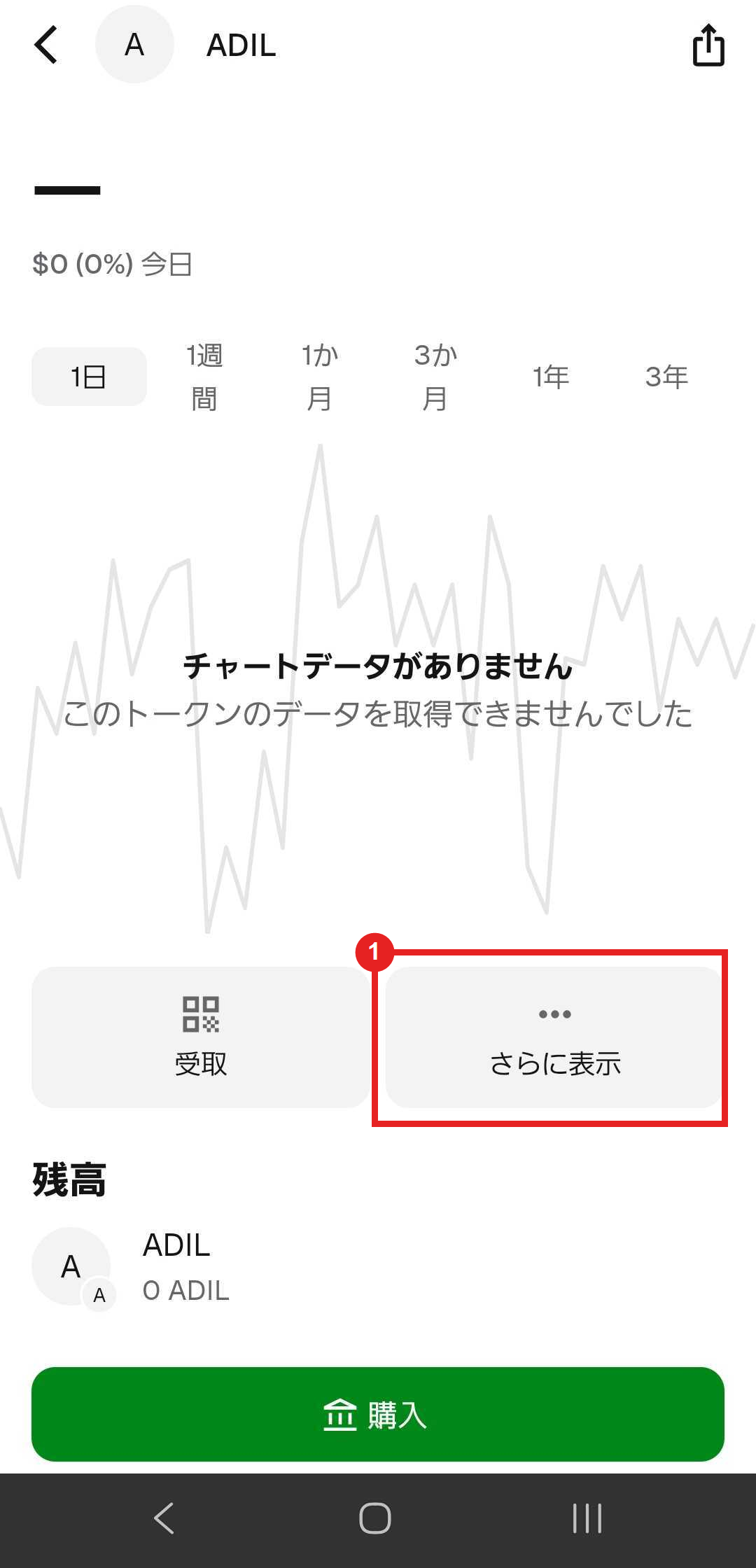
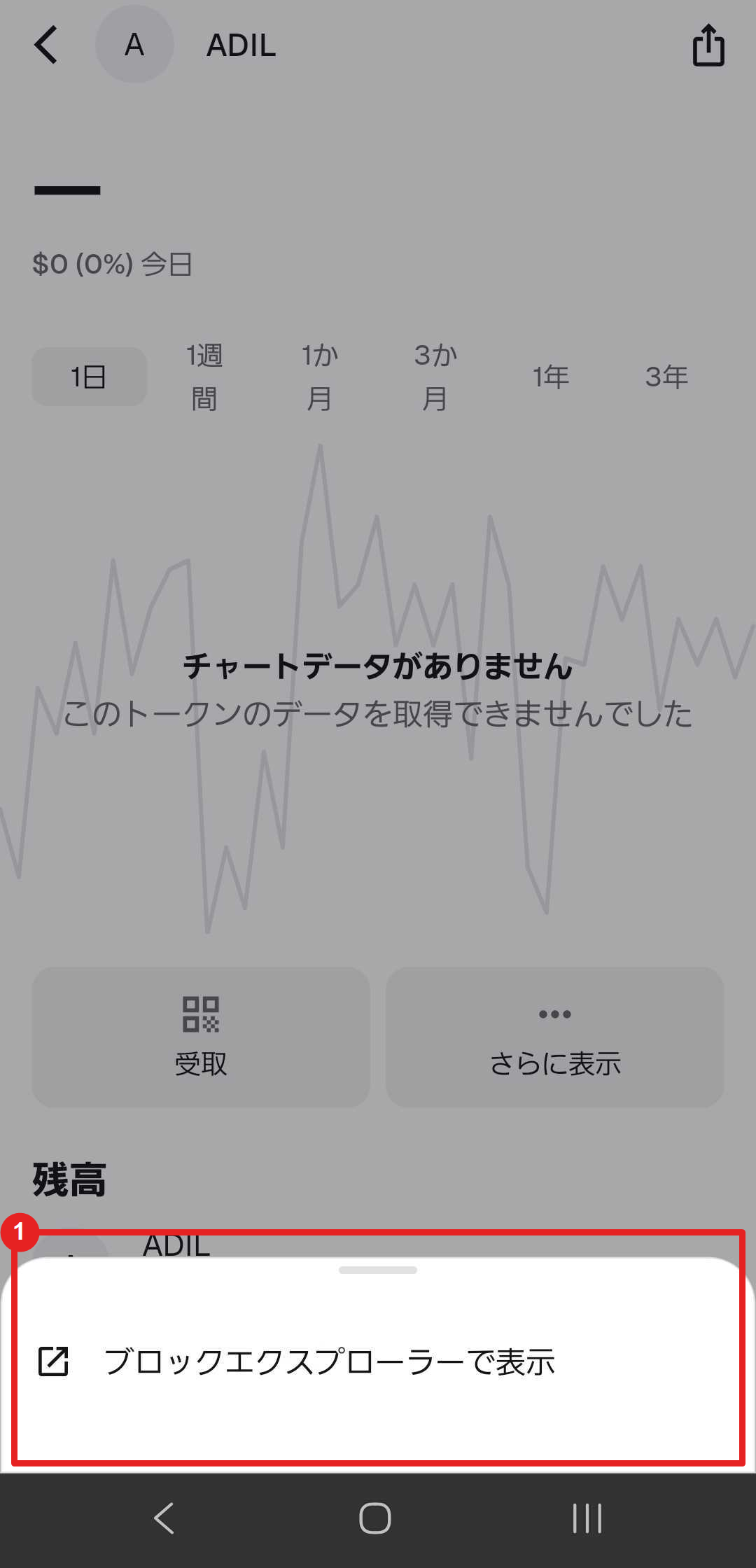
Tap 「ブロックエクスプローラーで表示」 (View in block explorer).
When AdilScan opens in your browser, the mobile setup is complete.
If the ADIL Network Is Already Added
If the ADIL network is already added, you do not need to add it again. Open “ADIL Chain V2 Mainnet” from the network management screen and confirm the following:
- Chain ID:
7576 - Block explorer URL:
https://adilchain-scan.io
If the old chain ID 75 or the testnet chain ID 7575 is configured, change it to the mainnet chain ID 7576 and save the network.
Important Notes
- Enter the network name, network URL, chain ID, currency symbol, and block explorer URL exactly as shown.
- If the network you added on the PC version does not appear automatically on the mobile version, enter the same information in the mobile app.
- You do not need a Secret Recovery Phrase or private key to add a network.
- Never share your Secret Recovery Phrase or private key with anyone.