🛒 How to Connect MetaMask to VVVVV and View NFTs
This page explains how to connect MetaMask to the NFT marketplace VVVVV and view the NFTs held in MetaMask on VVVVV.
Before You Begin
- Make sure MetaMask is ready to use.
⇒ How to Create a MetaMask Wallet - Add the ADIL network to MetaMask.
⇒ How to Add the ADIL Network and AdilScan to MetaMask
Safety notice
- Confirm that the VVVVV URL is
https://www.vvvvv.my/.- Never enter your Secret Recovery Phrase or private key on a website.
- Before proceeding, check the connected site, account, and request shown in MetaMask.
- Button names and screen layouts may change when VVVVV or MetaMask is updated.
1. Connect Your Wallet to VVVVV
This section is a complete standalone guide to connecting your wallet to VVVVV.
To view the NFTs held in MetaMask on VVVVV, continue to “2. View Your MetaMask NFTs on VVVVV” after connecting.
STEP 1: Open VVVVV
Open the official VVVVV website and select 「ウォレットを接続」 (Connect Wallet) in the upper-right corner.

STEP 2: Select WalletConnect and Allow MetaMask
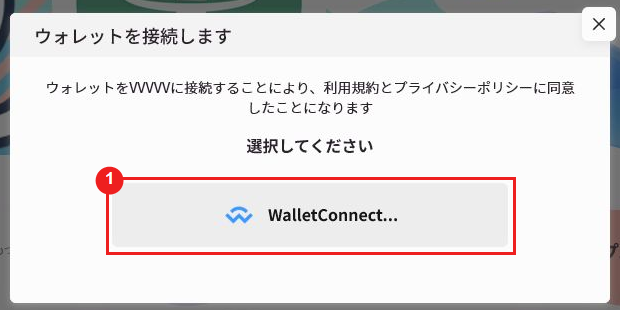
Review the consent notice for the Terms of Service and Privacy Policy, then select “WalletConnect.”
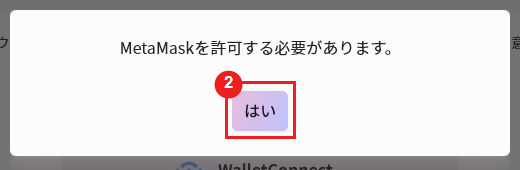
After selecting WalletConnect, the message 「MetaMaskを許可する必要があります。」 (MetaMask permission is required) appears. Review the message and select 「はい」 (Yes).
STEP 3: Review the Connection Request in MetaMask
When MetaMask opens, confirm that the requesting site is “www.vvvvv.my,” check the account and request details, and then select 「接続」 (Connect).
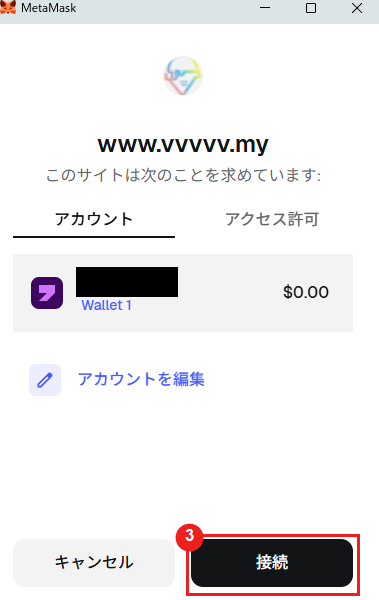
The screen layout and button names may differ between the desktop and mobile versions and between MetaMask versions.
If you are asked to add or switch networks, compare the displayed values with How to Add the ADIL Network and AdilScan to MetaMask.
The Wallet Connection Procedure Ends Here
The wallet connection is complete when the MetaMask process finishes and VVVVV shows that the wallet is connected.
Purchasing, listing, signing, and transferring NFTs are not part of this connection procedure.
2. View Your MetaMask NFTs on VVVVV
You do not need to transfer an NFT directly to VVVVV.
When you connect the MetaMask account holding the NFT to VVVVV, NFTs associated with that wallet address can be viewed on the profile page.
Important
Do not use MetaMask’s NFT transfer feature to send an NFT directly to VVVVV or to a third-party wallet address. An NFT sent to the wrong address may be impossible to recover.
STEP 4: Confirm the Account Holding the NFT
In MetaMask, select the account that holds the NFT you want to view. Also confirm that the selected network is ADIL Chain V2 Mainnet.
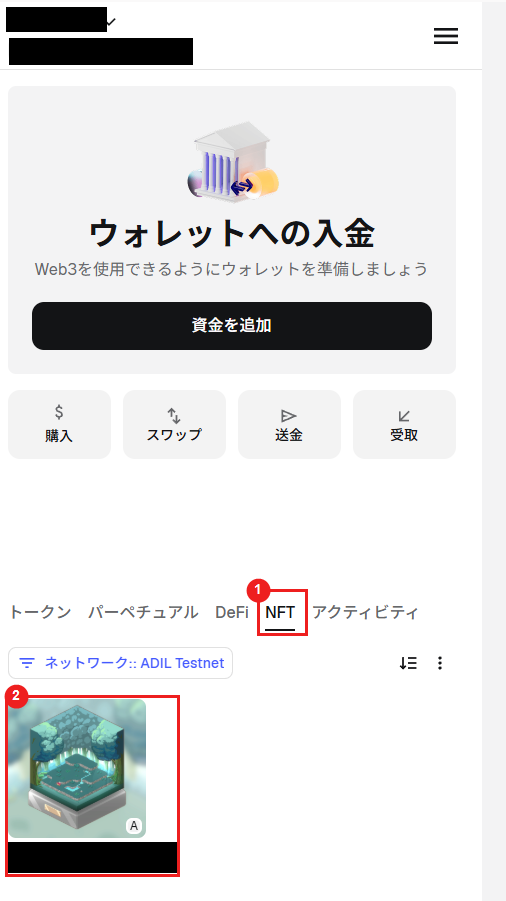
Open the “NFT” screen in MetaMask and confirm that the NFT you want to view is displayed.
About the screenshot
The following screenshot was prepared in a test environment for the purpose of demonstrating the NFT display in MetaMask. Although “ADIL Testnet” appears in the image, the official connection network is ADIL Chain V2 Mainnet. This image does not show the Mainnet configuration.
If a different account is selected, disconnect the wallet from VVVVV and reconnect using the correct account.
STEP 5: Open the Profile Page
After connecting the wallet, select the account area in the upper-right corner and open the profile page for the connected wallet.
From the displayed menu, select 「マイページ」 (My Page).
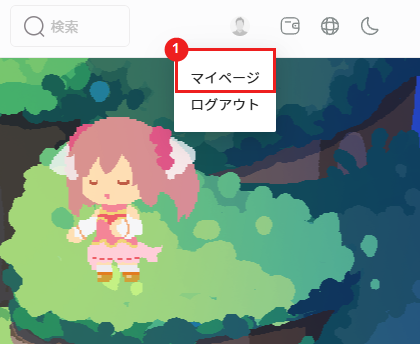
The account display and menu labels may differ because of VVVVV or MetaMask updates and differences between the desktop and mobile versions.
STEP 6: View Your NFT Assets
On the profile page, check 「NFT資産」 (NFT Assets) and the NFT list displayed below it.
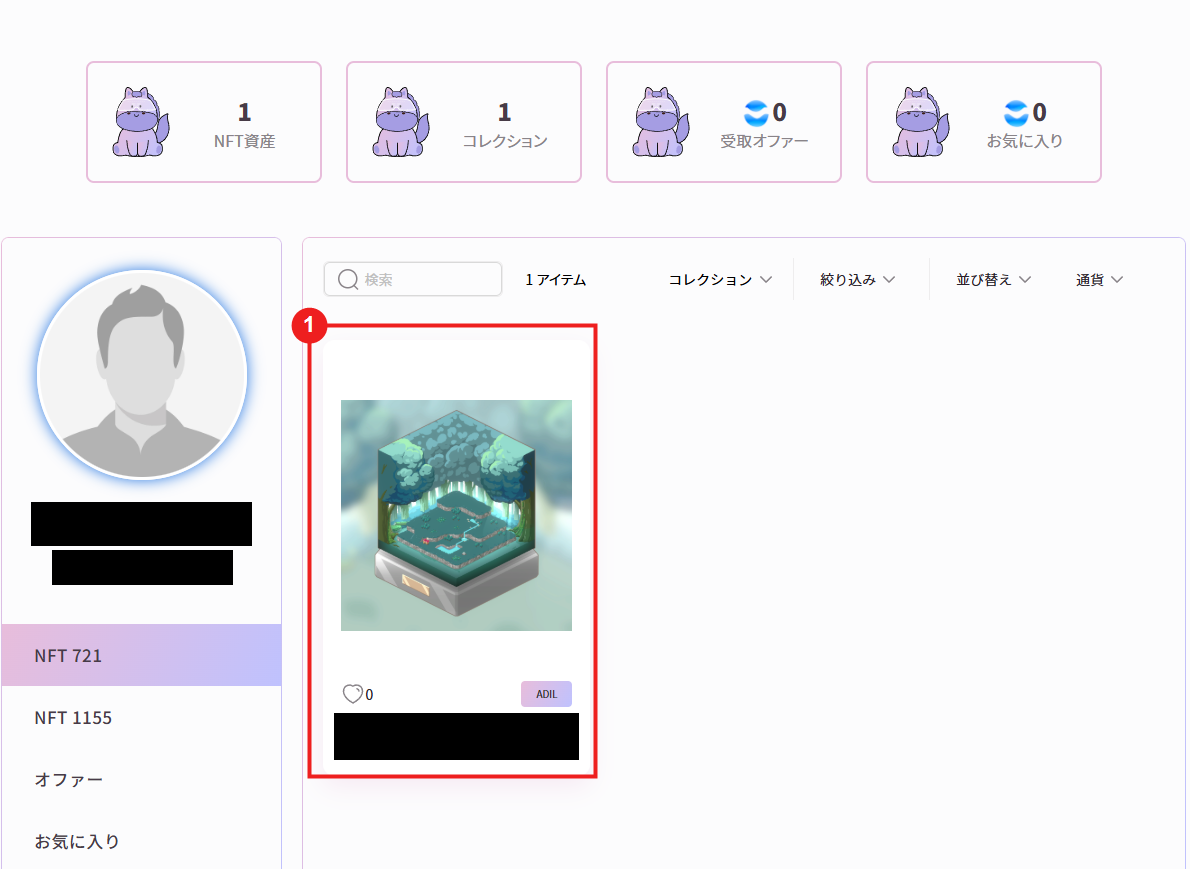
If you have multiple NFTs, use 「検索」 (Search) or 「コレクション」 (Collection) above the list to narrow the results. To find a BokuSaga-related NFT, select the relevant collection and verify the NFT image and name.
Select an NFT to view its details. This page covers viewing NFTs only; it does not include instructions for purchasing, listing, setting prices, making offers, signing, or transferring NFTs.
If an NFT Is Not Displayed
- Confirm that the MetaMask account holding the NFT is connected.
- If you changed accounts, reconnect VVVVV and reload the profile page.
- If the VVVVV display does not match the wallet holdings, see How to Add the ADIL Network and AdilScan to MetaMask and check the address and NFT information on AdilScan.
- If the NFT still does not appear, do not send it to another address. Contact VVVVV support instead.