👛 (Oasys Passport) How to Connect to a Wallet on the Official Website
Preparation
Please install Oasys Passport and register an account.
Table of Contents
[How to Connect to a Wallet (PC Version)] (#PC)
[How to Connect to a Wallet (Smartphone Version)] (#SMP)
[How to Connect to a Wallet (PC Version)]
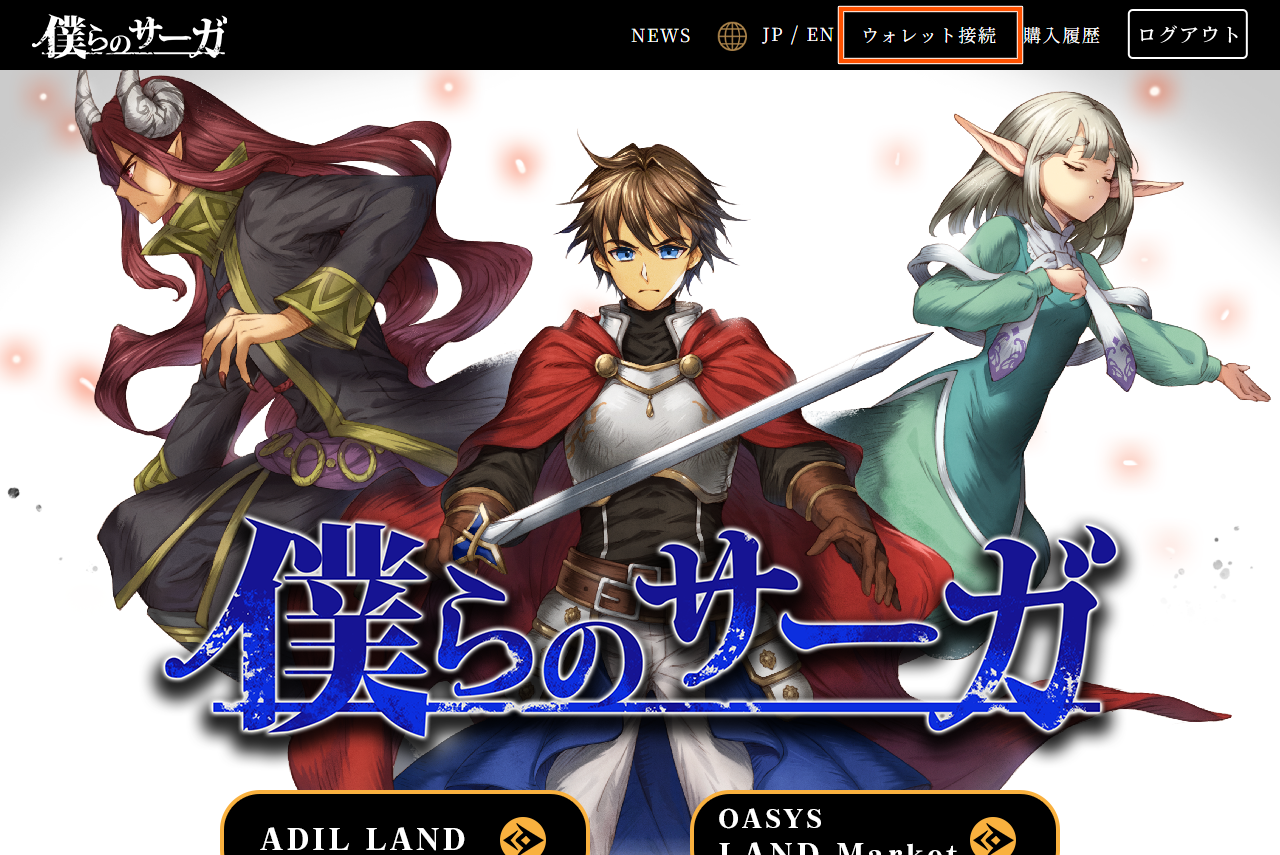
Step 1: Click "Wallet Connection" at the top of the homepage.
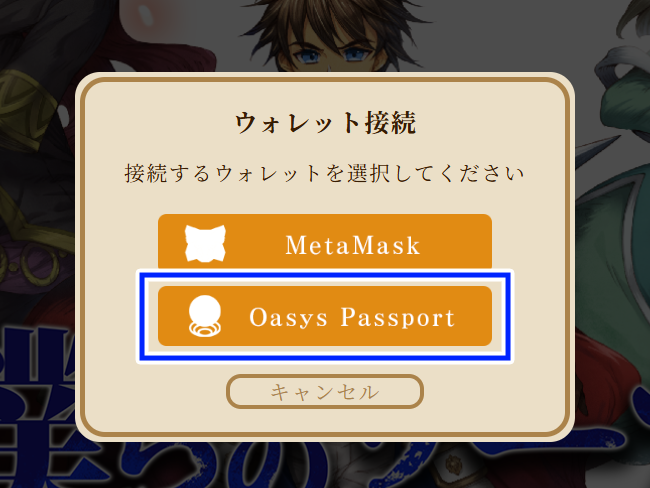
Step 2: Log in to Oasys Passport.
Click "Oasys Passport" in the dialog box.
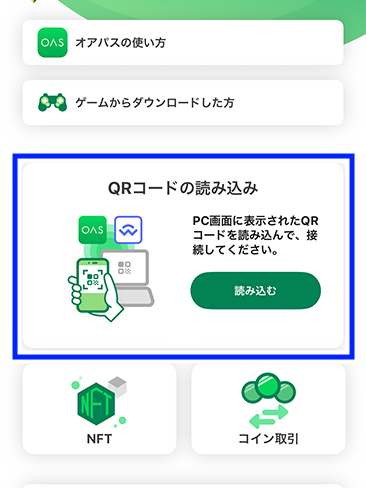
Step 3: Scan the QR code with your device
Scan the QR code using the OasysPassport app.
Once scanned, the OasysPassport app will launch.
Step 4: Connect with the App
After scanning the QR code, the app will display a connection confirmation for the official Boku Saga website.
Confirm the wallet you want to connect to and select Connect.

Once selected, the connected wallet address will be displayed on the website displayed on your PC.
This completes the connection.
[How to Connect Your Wallet (Smartphone App Version)]
*The device used here is an iPhone, but the steps are similar for Android.
Step 1: Open the Web from the App
Access the official BokuSaga website from your browser.
https://www.bokusaga.net/index.html
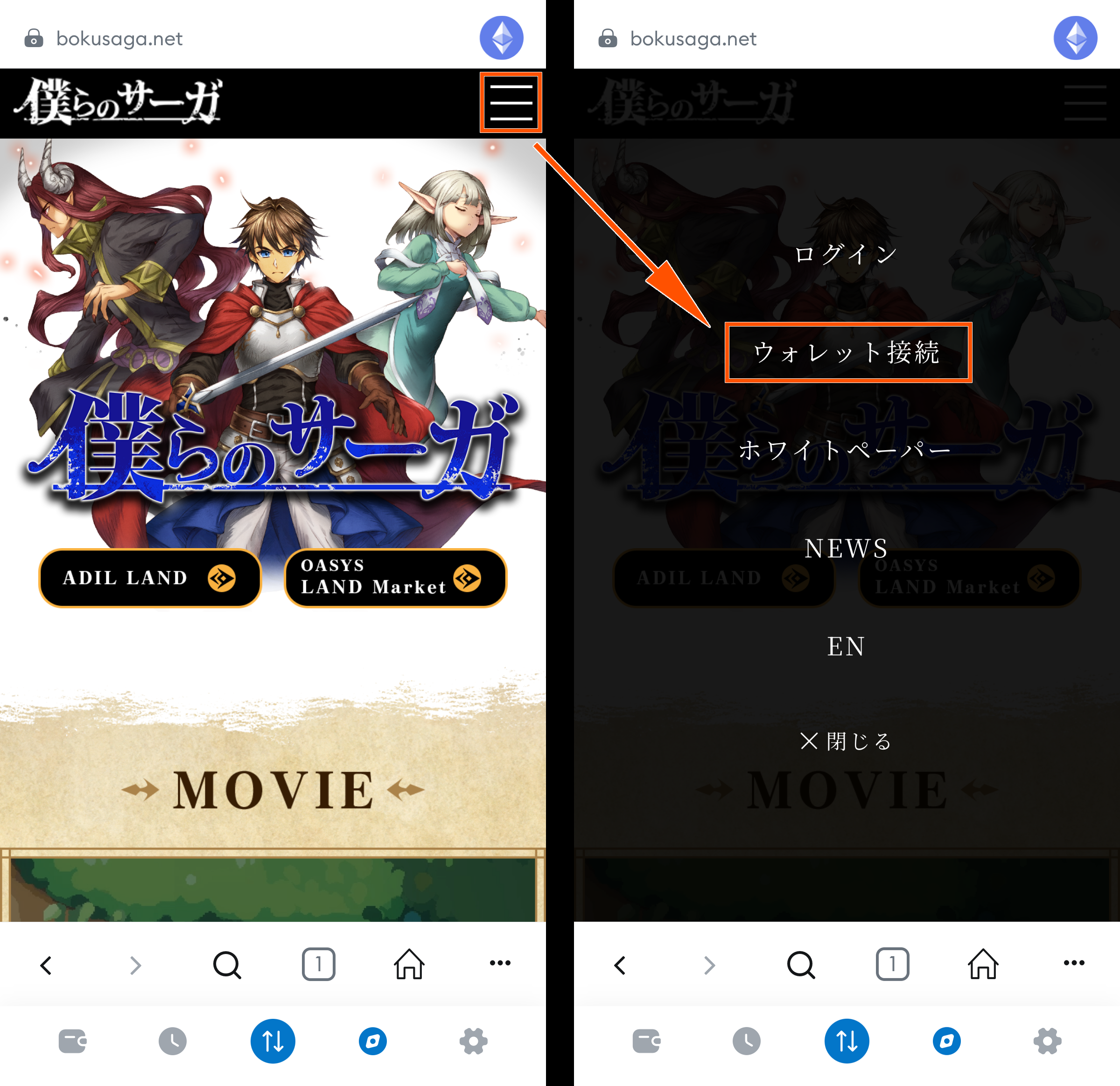
Step 2: Open the Hamburger Menu
Tap the ≡ (hamburger menu) in the upper right corner of the page, then tap Connect Wallet. A pop-up will appear confirming that you want to proceed to the app.
Step 3: Connect to the Site
When you move from the website, a confirmation message will appear in the app asking you to connect to the official BokuSaga website.
Confirm that the wallet you want to connect to is correct and select Connect.
Once the connection is complete, the connected wallet address will be displayed in the hamburger menu on the official website.
The connection is now complete.