👛 How to Connect a Wallet on the Official MetaMask Website
Preparation
If you have not installed MetaMask,
See How to Create a MetaMask.
If you have not added the MCHverse network to MetaMask,
Please refer to the link below to add a custom network.
How to Add a MetaMask Custom Network
https://support.metamask.io/en/networks-and-sidechains/managing-networks/how-to-add-a-custom-network-rpc/
Documents for MCH Verse
https://medium.com/mycryptoheroes/documents-for-mch-verse-3234702817ce
Table of Contents
How to Connect a Wallet (PC Version)
How to Connect a Wallet (Mobile Version)
[How to Connect a Wallet (PC Version)]
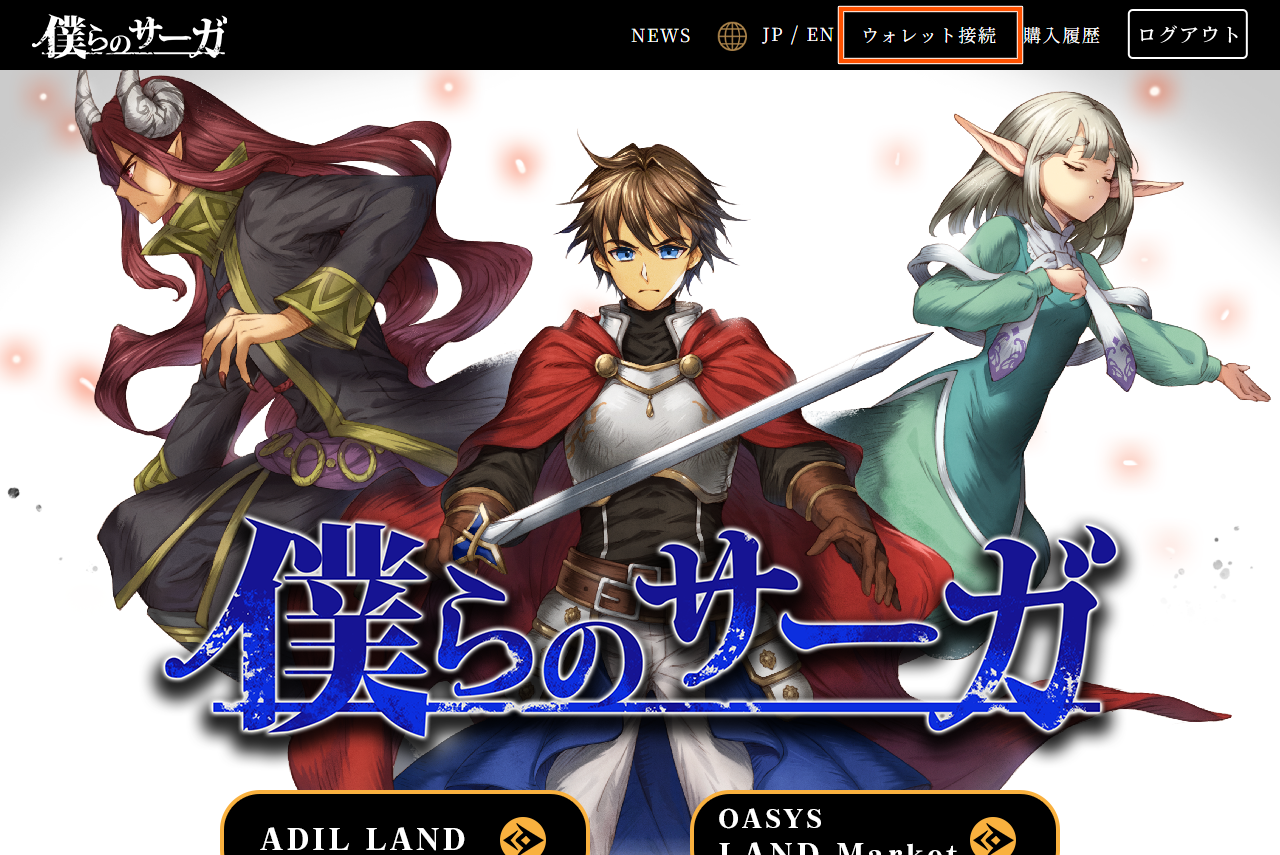
Step 1: Click Wallet Connection at the top of the homepage
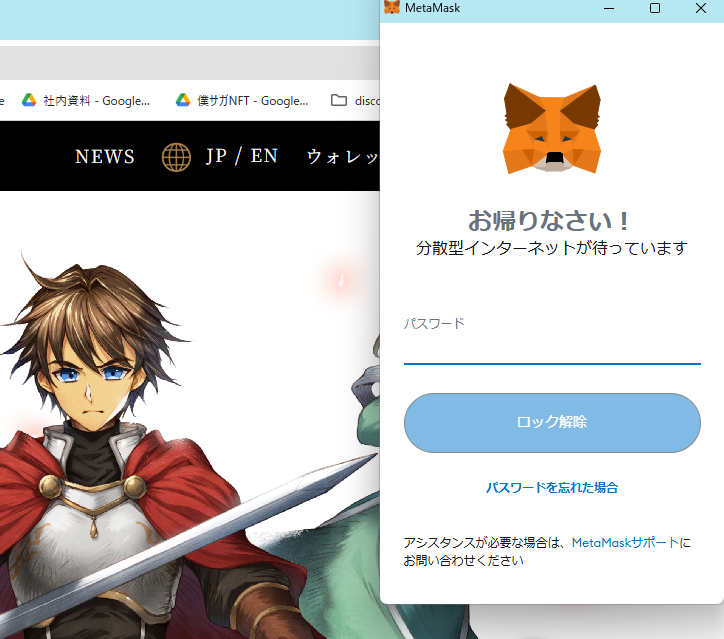
Step 2: Log in to MetaMask
Enter your MetaMask password and click Unlock.
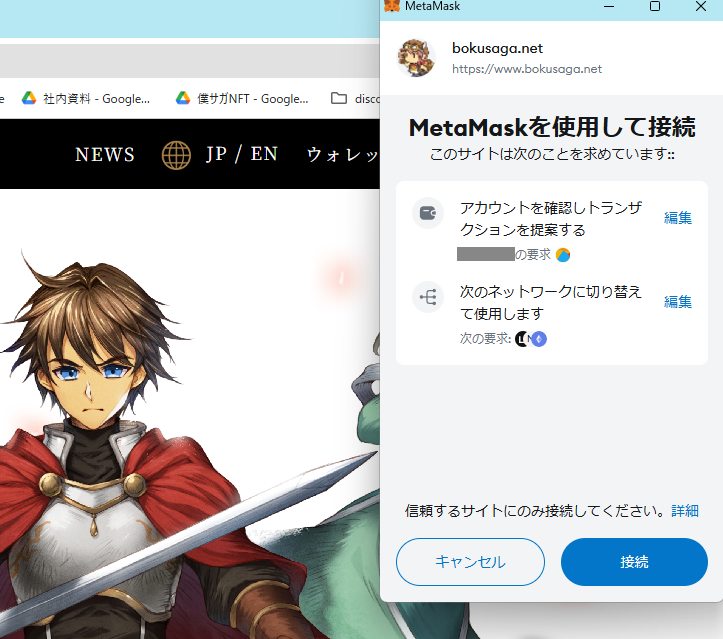
Step 3: Connect to the Site
Please confirm the information provided and connect.
If MetaMask is not connected to the MCHverse network, please set up the connection.
The connection is complete when your wallet ID appears where "Wallet Connection" was previously displayed.
[How to Connect Your Wallet (Smartphone App Version)]
*The device used in this example is an iPhone, but the procedure is similar for Android.
Step 1: Open the Web from the App
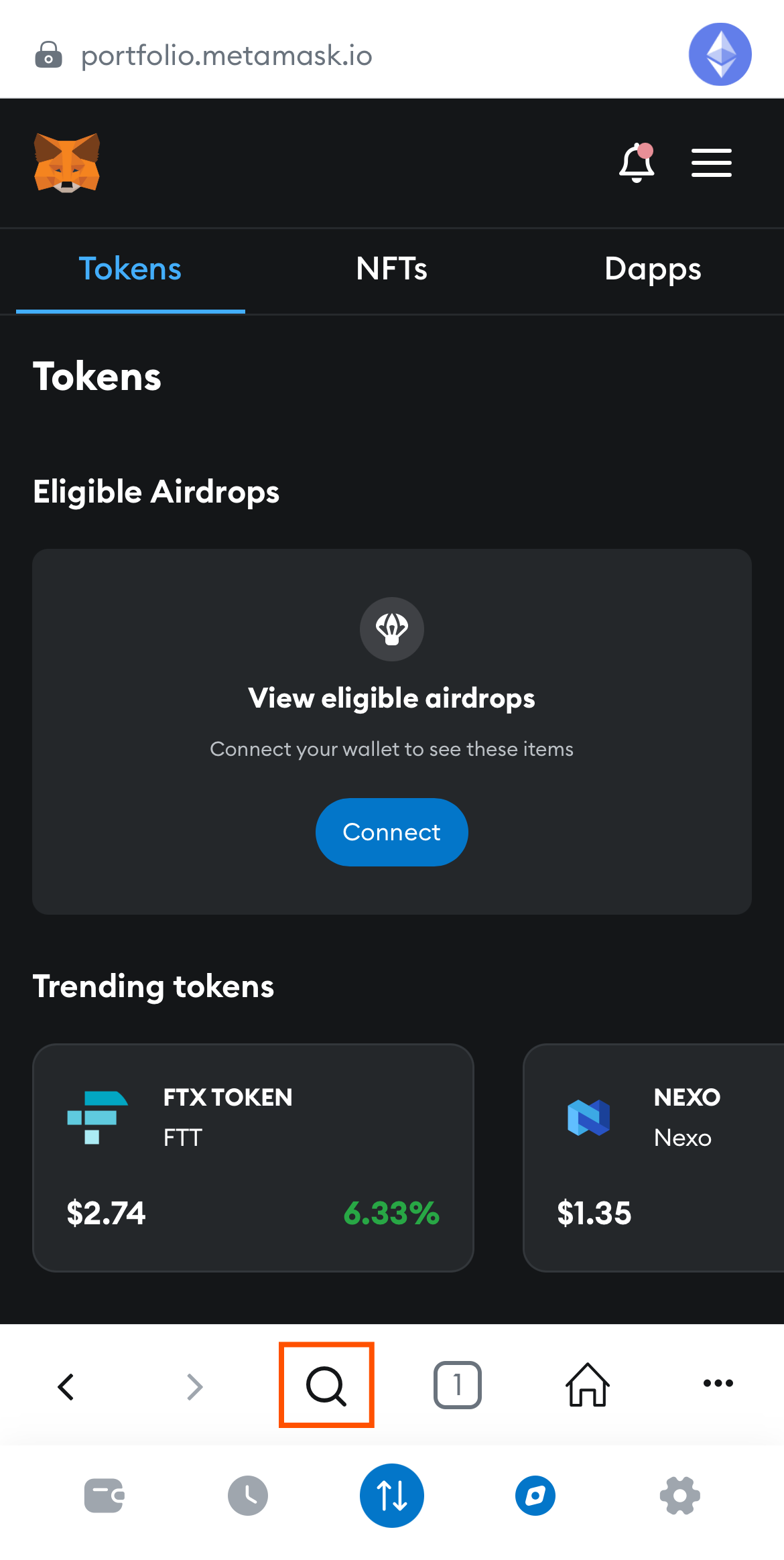
Open the MetaMask app and open the Web from the tab below.
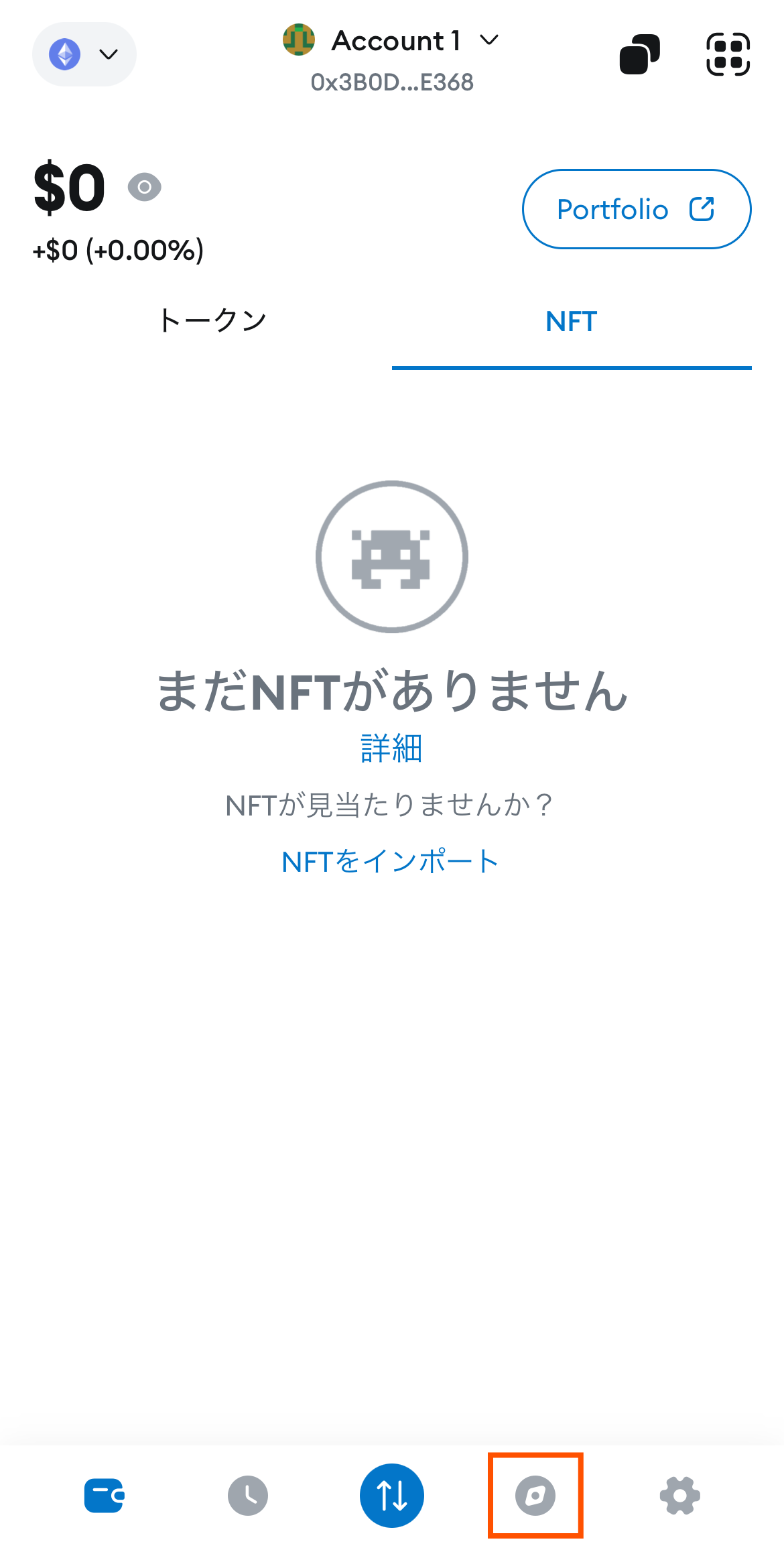
Step 2: Open the web from the app
Tap the search icon 🔍 and search for "Bokura no Saga"
Or enter the URL of the official Bokura no Saga website.
https://www.bokusaga.net/
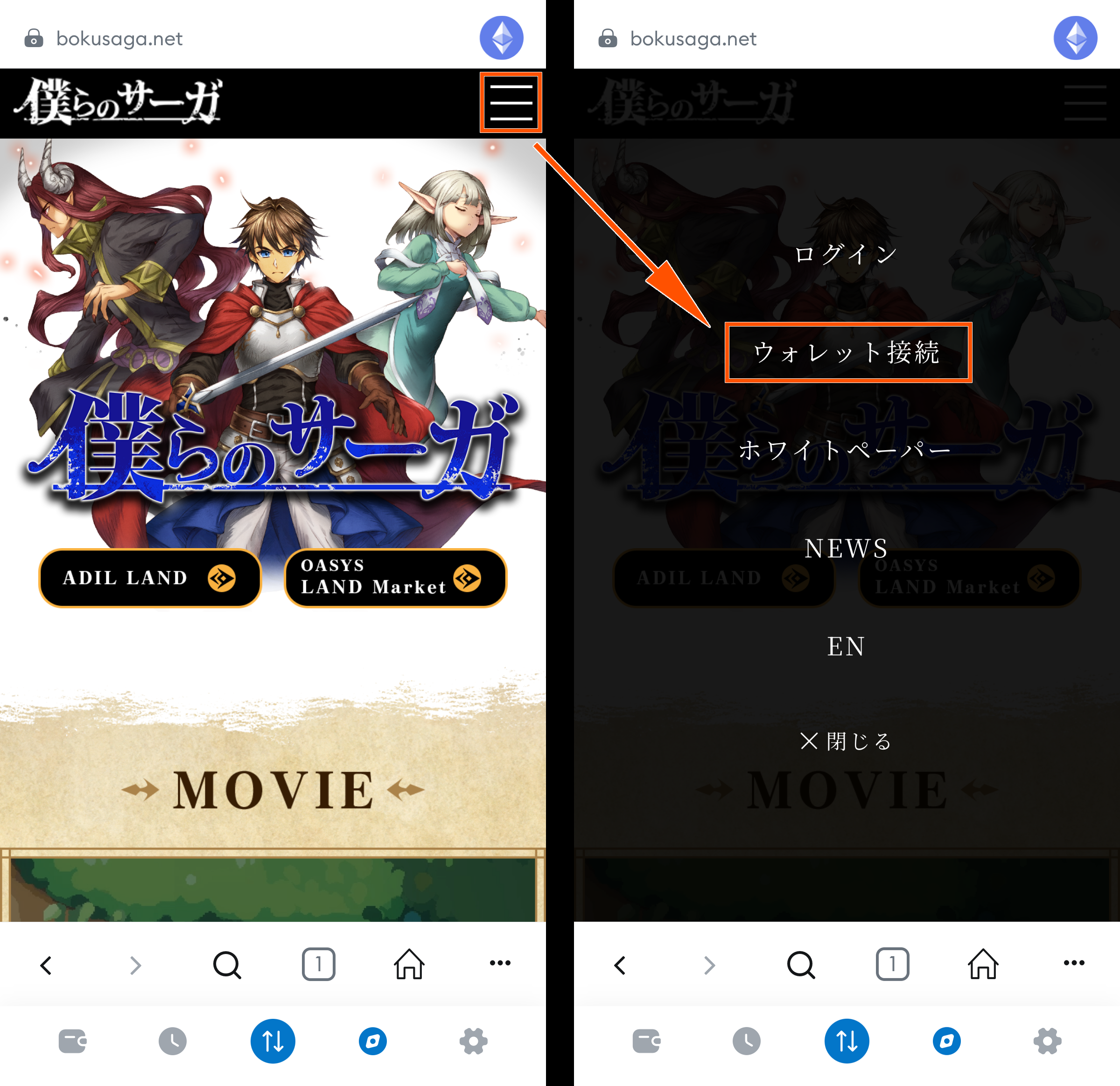
Step 3: Open the hamburger menu
Tap the ≡ (hamburger menu) in the upper right corner of the page, and then tap "Wallet Connection."
Step 4 Connect to the Site
Check the information provided and connect.
If MetaMask is not connected to the MCHverse network, please set up the connection.
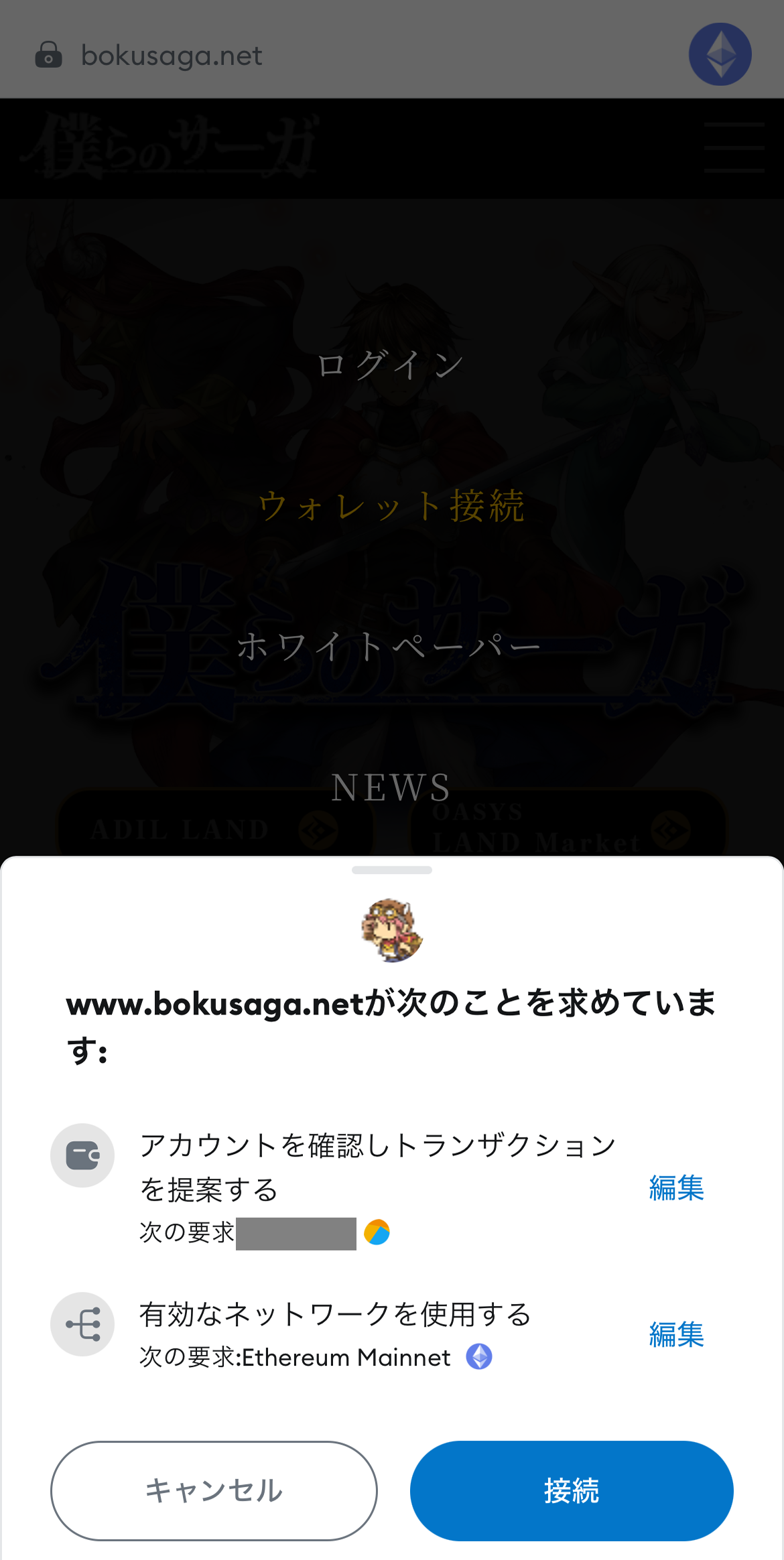
The connection is complete when your wallet ID appears where "Wallet Connection" was previously displayed.